Skip to content

Events

docs.scrimba.com

A page that never reacts is only a document. The moment you want something to happen when a person clicks a button, types in a search box, or submits a form, you need a way to say "when this happens, run this code". That is what events are. This chapter is about listening for the things a user does and responding to them.

Listening for an event

An event is something that happens on the page: a click, a key press, a form being sent. To respond to one, you pick an element, name the event you care about, and hand over a function to run when it happens.

That function is called a handler. The method that wires it up is addEventListener:

js
const button = document.querySelector(".buy-button");

button.addEventListener("click", () => {
  console.log("Someone clicked buy");
});

Read it left to right: on this button, listen for "click", and when it happens, run this function. The handler runs every time the event happens, not once. Click three times and it runs three times.

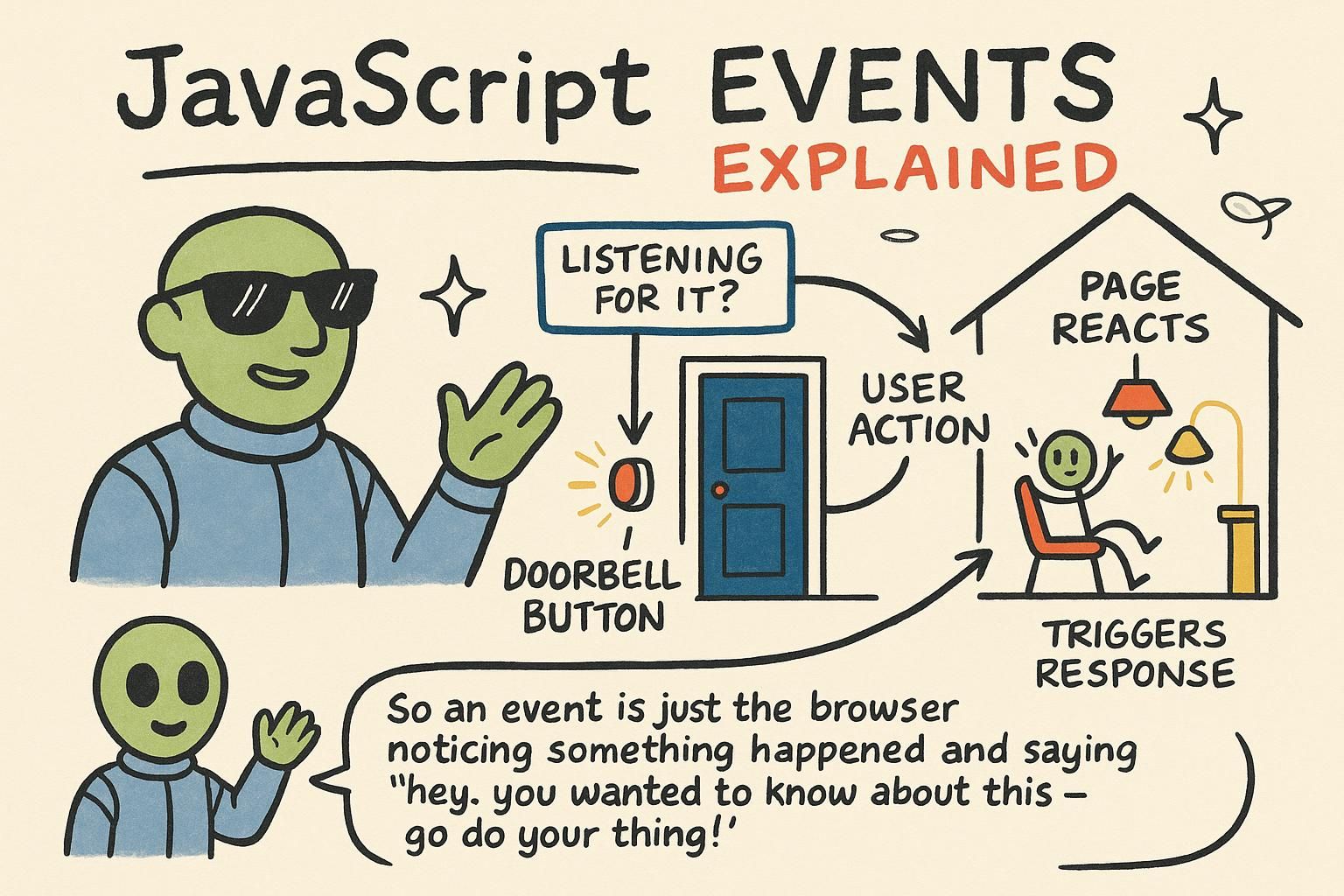
An event is a signal the browser fires when something happens: the user clicks, types, submits a form, or the page finishes loading. You respond by registering a handler with addEventListener, which takes the event name as a string and a function to call each time it fires.

js
const button = document.querySelector(".buy-button");

const handleBuy = () => {
  console.log("Someone clicked buy");
};

button.addEventListener("click", handleBuy);

Notice handleBuy is passed without parentheses. You are handing the function itself to the browser to call later, not calling it now. Writing addEventListener("click", handleBuy()) would call it immediately and register whatever it returned, which is a common early mistake.

An event is a message the browser dispatches to any code that has registered interest in it. You register with addEventListener(type, handler): the type is the event name as a string, the handler is a callback the browser invokes each time the event fires on that element.

js
const button = document.querySelector(".buy-button");

const handleBuy = () => {
  console.log("Someone clicked buy");
};

button.addEventListener("click", handleBuy);

Two things matter here. First, you pass handleBuy, the function value, not handleBuy(), the result of calling it. Second, addEventListener is additive: call it twice with two functions and both run, so listeners stack rather than overwrite. That is the practical reason it exists rather than assigning button.onclick, which holds a single handler and clobbers any previous one. Keeping a named reference to the handler also matters later, when you want to remove it.

Handlers are ordinary functions, and the elements you attach them to come from the DOM. If you can select an element and write a function, you can respond to what the user does to it.
JunoListening for an event To respond to a user, pick an element, name the event as a string like "click", and give addEventListener a function to run. That function is the handler, and it runs every single time the event happens, not once. This one method is behind almost everything a page does in response to you.
JunoListening for an eventaddEventListener takes an event name and a function, and calls that function each time the event fires. Pass the function by name with no parentheses: handleBuy, not handleBuy(). Adding the parentheses calls it right away instead of on the click, and that trips up nearly everyone once.
JunoListening for an eventaddEventListener registers a callback the browser fires on each matching event, and it stacks rather than overwrites, which is why you prefer it over onclick. Pass the function value, not its call result, so handleBuy and never handleBuy(). Keep a named reference around too, because you will want it back when it is time to remove the listener.

The event object

When the browser runs your handler, it hands it one piece of information: an event object describing what happened. Catch it by giving your handler a parameter, usually named event:

js
const button = document.querySelector(".buy-button");

button.addEventListener("click", (event) => {
  console.log(event.target); // the element that was clicked
});

The most useful part is event.target: the element the event happened on. If the click was on the button, event.target is that button. You do not have to select it again, the event already tells you where it came from.

Every handler receives one argument: the event object, which carries details about what happened. You capture it by naming a parameter, conventionally event (or e):

js
const search = document.querySelector(".search-input");

search.addEventListener("input", (event) => {
  console.log(event.target.value); // what the user has typed so far
});

event.target is the element the event fired on. On form fields it is the star of the show, because event.target.value gives you the current text of the input. That pairing, input event plus event.target.value, is how you read what someone is typing as they type it.

The browser passes your handler a single argument, the event object, a snapshot of what happened: which element, which key, the mouse position, and methods to control the event's default behaviour. You capture it with a parameter, conventionally event.

js
const search = document.querySelector(".search-input");

search.addEventListener("input", (event) => {
  console.log(event.target.value); // current text in the field
});

event.target is the element that originated the event, which is not always the element you attached the listener to (that one is event.currentTarget, and the gap between them is what makes delegation work, below). On form controls, event.target.value reads the current value as a string, so the same .value that HTML holds as text comes back as text here. Reach for a number and you convert it yourself with Number(event.target.value).

JunoThe event object Your handler gets one argument, the event object, so give it a parameter named event to catch it. The part you will reach for most is event.target, the element the event happened on. No need to re-select it, the event already knows where it came from.
JunoThe event object Name a parameter event and the browser fills it with details about what happened. event.target is the element it fired on, and on an input, event.target.value is the text currently in the field. Pair the input event with event.target.value and you can read what someone types as they type it.
JunoThe event object The event object is a snapshot of what happened, and event.target is where it started, which is not always where you attached the listener; that one is event.currentTarget. On form fields event.target.value comes back as a string, so wrap it in Number(...) when you need a number. Keep the target-versus-currentTarget split in mind, because delegation leans on it.

Common events

A handful of events cover most of what you will build:

  • click: the user clicks or taps something.
  • input: the value of a text field changes as they type.
  • submit: a form is sent.
  • keydown: a key is pressed.

The tricky one is submit. By default, submitting a form reloads the page, which wipes out anything your JavaScript was doing. To stop that, call event.preventDefault() inside the handler:

js
const form = document.querySelector("form");

form.addEventListener("submit", (event) => {
  event.preventDefault(); // stop the page from reloading
  console.log("Form submitted, page stays put");
});

Most pages lean on a small set of events: click for buttons, input for text fields as they change, submit for forms, and keydown for keyboard shortcuts. Learn these four and you can build the majority of interactions.

The one that catches people out is submit. A form's default behaviour is to reload the page or navigate away, which throws out whatever your code was handling. Call event.preventDefault() to keep the page in place and take over yourself:

js
const form = document.querySelector("form");

const handleSubmit = (event) => {
  event.preventDefault();
  const email = form.querySelector(".email-input").value;
  console.log(`Signing up ${email}`);
};

form.addEventListener("submit", handleSubmit);

Listen for submit on the form itself, not click on the button, so keyboard users who press Enter are covered too.

Four events carry most interactions: click, input (fires on every value change, unlike change which waits for blur), submit, and keydown. Bind them to the right element and most UI falls out of them.

The submit event is where preventDefault earns its place. A form's default action is a full navigation, which discards your in-page state. Calling event.preventDefault() cancels that so you handle the data yourself:

js
const form = document.querySelector("form");

const handleSubmit = (event) => {
  event.preventDefault();
  const email = form.querySelector(".email-input").value;
  console.log(`Signing up ${email}`);
  // sending it to a server is the next chapter's job
};

form.addEventListener("submit", handleSubmit);

Attach to the form's submit, not the button's click: submit fires for Enter key, button click, and programmatic submission alike, so it is the correct hook. Once you have the value, sending it somewhere is where async code comes in, which is the next chapter.

Bubbling and delegation

When you click an element, the event does not stop there. It bubbles: it fires on the clicked element, then its parent, then that parent's parent, all the way up. This is why a listener on a parent hears clicks on its children.

That behaviour powers delegation: attach one listener to a parent and use event.target to find which child was actually clicked. Instead of a listener per item, you get one that covers all of them.

js
const list = document.querySelector(".todo-list");

list.addEventListener("click", (event) => {
  if (event.target.matches(".delete")) {
    event.target.closest("li").remove();
  }
});

The payoff: this handles items added to the list later. A per-item listener only binds elements that exist right now; a delegated listener on the parent catches clicks on children that did not exist when the code ran, because the event still bubbles up to the parent that is listening.

Removing listeners

removeEventListener detaches a handler, but only if you pass the exact same function reference you added:

js
const button = document.querySelector(".buy-button");

button.addEventListener("click", handleBuy);
button.removeEventListener("click", handleBuy); // works: same reference

This is why anonymous handlers cannot be removed. An inline arrow function like addEventListener("click", () => {...}) creates a fresh function each time, so you have no reference to hand to removeEventListener, and the listener is stuck. Named handlers you plan to remove avoid that. Listeners that outlive the elements they touch are a real source of memory leaks, where objects the page no longer needs cannot be reclaimed because a listener still points at them.

One more performance note: adding { passive: true } as a third argument on scroll or touch listeners promises you will not call preventDefault, which lets the browser scroll without waiting on your handler and keeps scrolling smooth.

JunoCommon events The events you will use most are click, input, submit, and keydown. The one to remember is submit: a form reloads the page by default, so call event.preventDefault() in the handler to stop that and keep control. Miss it and your page refreshes out from under you, which is confusing the first time.
JunoCommon eventsclick, input, submit, and keydown cover most of what you build. Listen for submit on the form, not click on the button, so Enter works for keyboard users. And call event.preventDefault() in a submit handler, or the page reloads and takes your state with it.
JunoCommon events Events bubble up to parents, so one delegated listener plus event.target covers many children, including ones added later. removeEventListener needs the same function reference you added, which is why anonymous handlers can never be removed and can leak memory. And submit beats a button's click because it fires for Enter too; keep event.preventDefault() in there to stop the reload.

Where events go from here

Events are how a page listens. You pick an element, name what you care about, and run a function when it happens, reading the details from the event object as you go. Almost every interactive feature is built from that loop.

The natural next step is doing something slow in a handler, like sending a form to a server or loading fresh data, without freezing the page. That is what async code is for, and it is the next chapter. Handlers that reach into structured data, like a list of items you keep in objects, lean on what you already know too.