

 Learn HTML & CSS
Forms and inputs
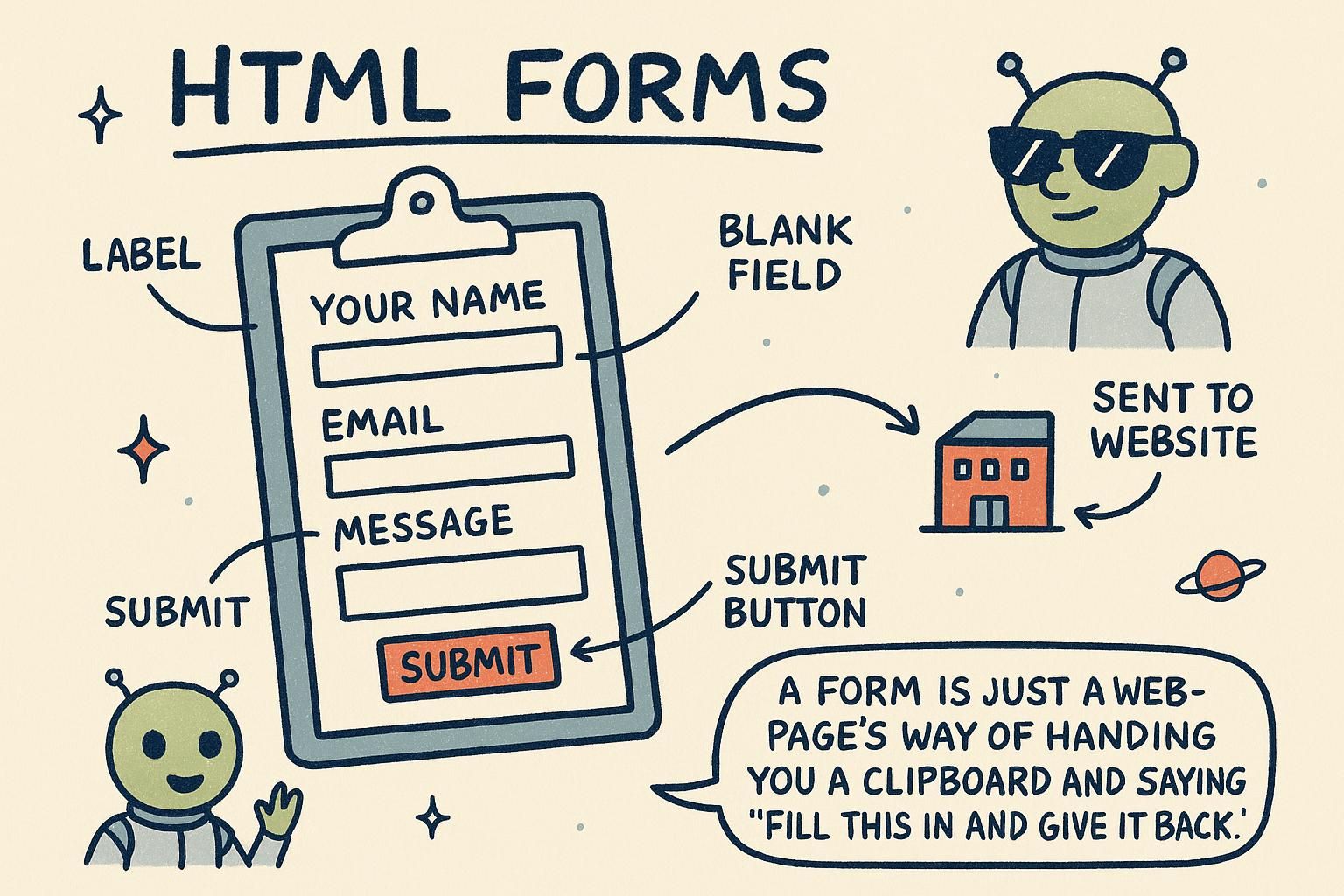
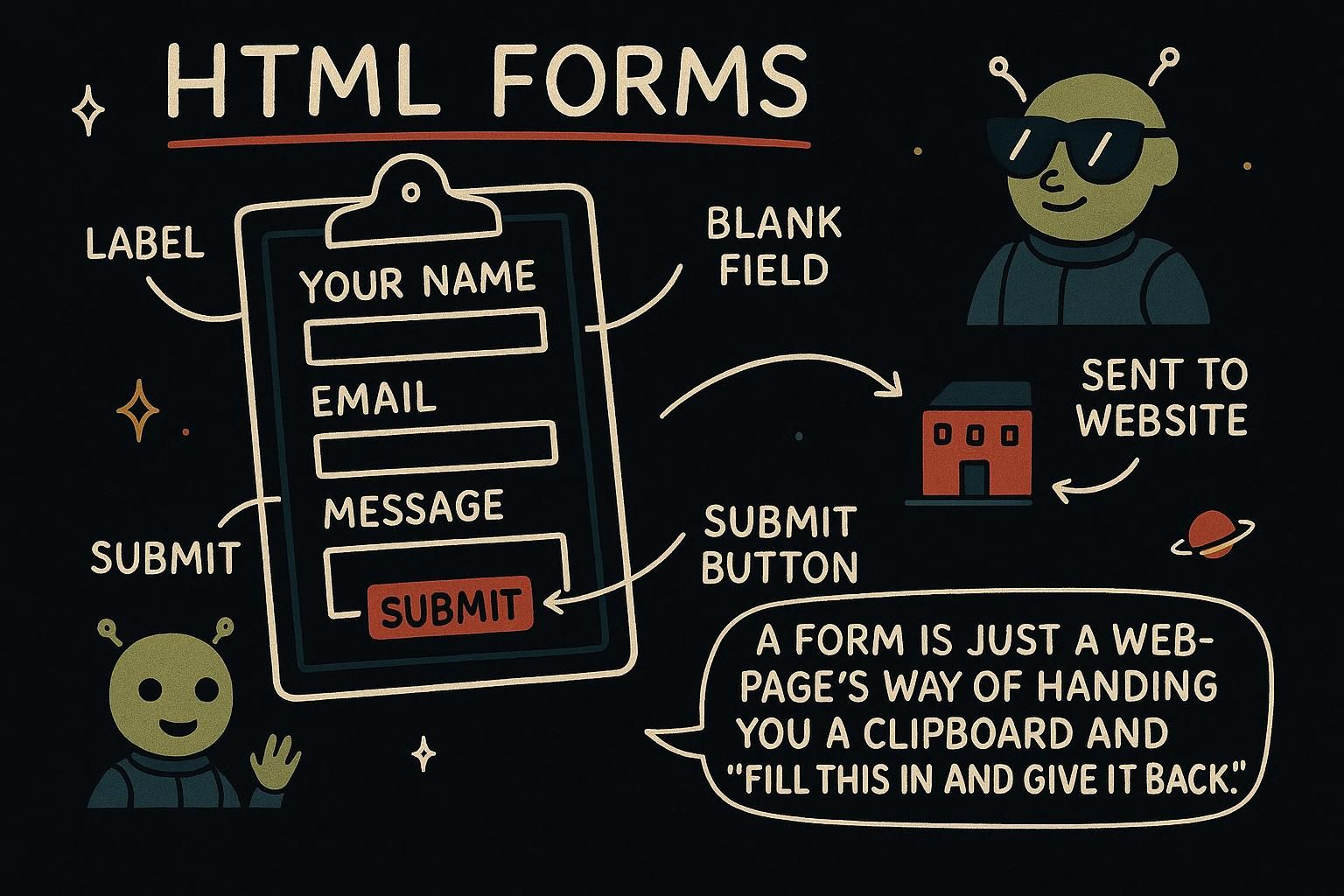
Almost every website that does something for you, a search box, a login, a checkout, a comment field, is built on a form. A form is how a page stops talking at the visitor and starts listening: it collects what someone types, ticks, or selects, and hands that data off to be acted on. This chapter is about the HTML that makes that possible.
The form element
A form is a container that groups together the things a visitor fills in. You wrap your inputs and a button inside a <form> element, and the form's job is to gather everything up and send it off when the visitor is done.
<form>
  <label>Your name</label>
  <input>
  <button>Send</button>
</form>
Think of it like a paper form you fill in at a doctor's office. The sheet holds all the boxes, you write in each one, and at the bottom you hand the whole sheet back at once. The <form> element is that sheet.

<form> is the container that holds your inputs and a button, and it sends everything off together when someone submits. Picture the paper form at a desk: one sheet, lots of boxes, handed back all at once. Wrap your fields in a form and you get that gather-and-send behaviour without doing anything clever. Inputs and labels
An <input> is the box a visitor types into. On its own though, an input is an empty box with no clue what it is for. That is what a label is for: it is the bit of text that tells the visitor what to put in the box.
<label for="city">City</label>
<input id="city">
Every input needs a label. You connect the two by giving the input an id and pointing the label at it with for, using the same word in both. Once they are linked, clicking the label puts the cursor in the box, which is a small kindness that makes the form easier to use for everyone.
<input> is the box people type in, and the <label> is the text telling them what goes there. Link them with matching for and id and clicking the label jumps straight to the box. Give every single input a label; a lonely box with no words next to it only confuses people. Other controls
Not everything is a plain text box. Some questions are better answered by ticking, choosing, or picking from a list. A tick box (a checkbox) is an on-or-off switch, and a dropdown lets someone pick one option from several.
<label>
  <input type="checkbox"> Send me the newsletter
</label>

<label for="size">Size</label>
<select id="size">
  <option>Small</option>
  <option>Medium</option>
  <option>Large</option>
</select>
You do not have to memorise these. The point for now is that a form can ask its questions in whatever way fits: type it, tick it, or choose it from a list.
<input type="checkbox">, and a dropdown is a <select> holding <option> choices. No need to memorise them; the form has more than plain boxes when a question needs it. How form data is named and submitted
When a form is sent, each answer needs a label so whoever receives it knows which box it came from. That label is the input's name. You set it once, and it travels with the value.
<label for="city">City</label>
<input id="city" name="city">
If the visitor types "Lisbon" into that box, the form sends the pair "city is Lisbon". The name is how the receiving side tells one answer apart from another. An input with no name is left out of the submission entirely, so this small attribute is the one that actually makes the data show up.
name is the tag on its answer, so the receiver knows a value came from the city box and not the email one. Set name, and the box's value gets sent as a labelled pair. Forget it, and that field is silently left out, which trips up a lot of people the first time a form sends back nothing.