

 Learn HTML & CSS
Lists
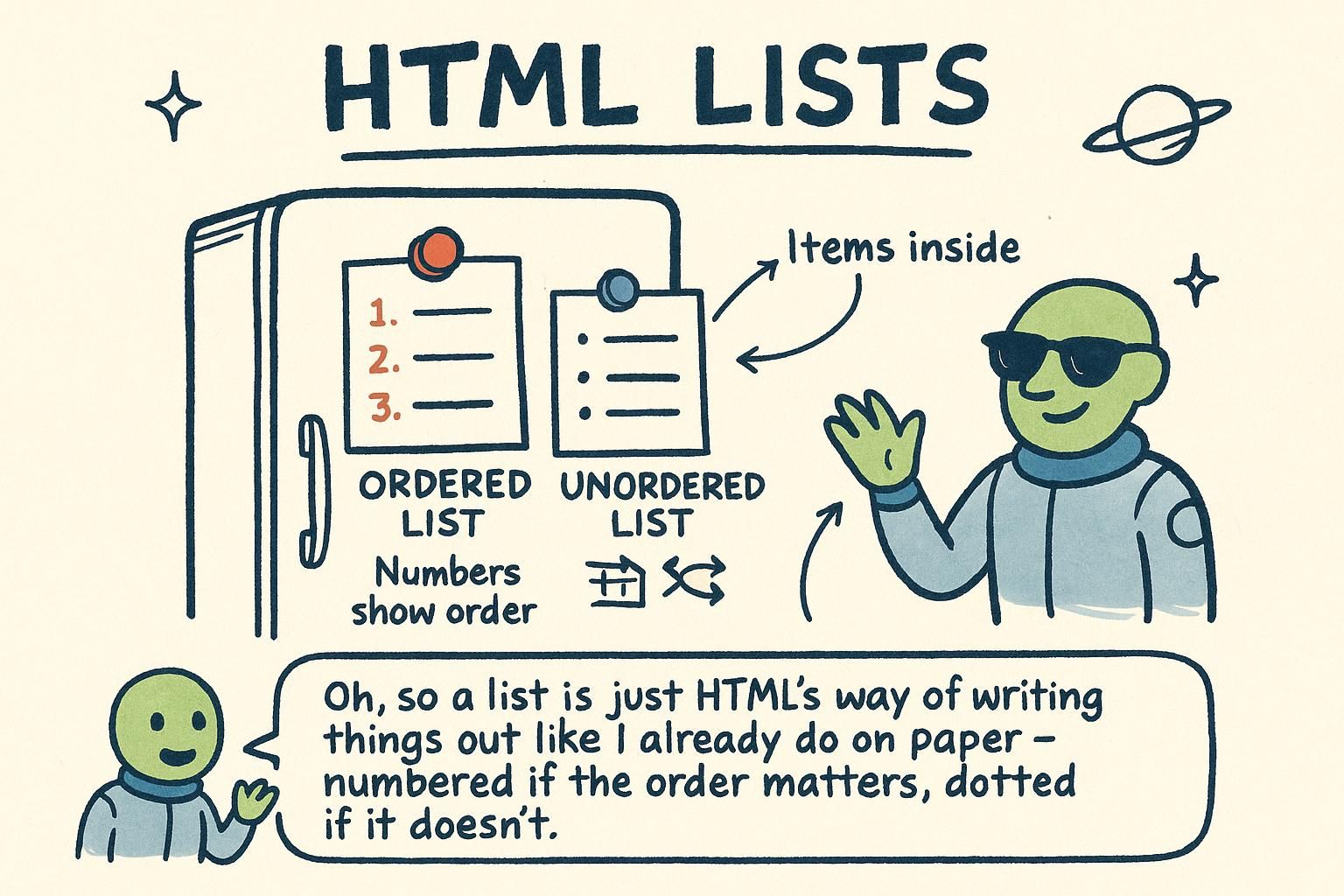
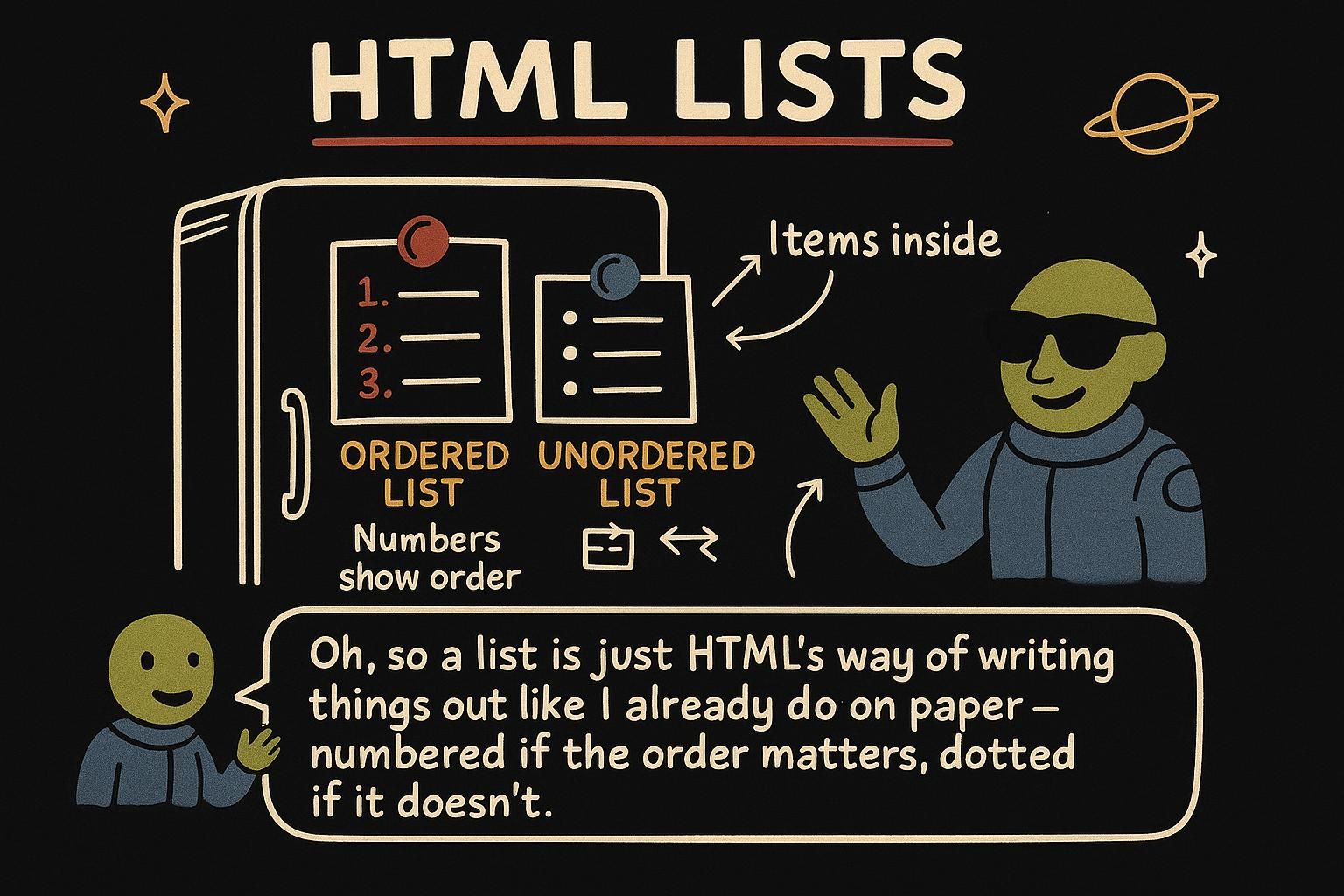
A surprising amount of a web page is really a list: navigation menus, search results, product grids, a recipe's ingredients, the steps to reset a password. Whenever content is a set of related items, HTML has an element that says so, and using it means the browser, and anyone reading with assistive software, knows the items belong together.
Unordered lists
When the order of the items does not matter, you use an unordered list. Think of a shopping list: milk, bread, eggs. It does not matter which one you write first, they are a bunch of things grouped together.
You build one with two tags. The <ul> tag wraps the whole list, and each item goes inside its own <li> tag ("list item"):
<ul>
  <li>Milk</li>
  <li>Bread</li>
  <li>Eggs</li>
</ul>
The browser shows each item on its own line with a bullet point in front of it. You did not add the bullets or the line breaks yourself, the browser does that because you told it this is a list.

<ul> for a list where the order does not matter, and wrap each item in its own <li>. The browser adds the bullets and the line breaks for you, so you never type those by hand. It took me a while to trust that, I kept wanting to add the dots myself. Ordered lists and their attributes
Sometimes the order is the whole point. Steps in a recipe, positions in a race, instructions you follow one after another. For those you use an ordered list, which numbers the items for you.
It works exactly like an unordered list, but the container is <ol> instead of <ul>:
<ol>
  <li>Preheat the oven to 180°C</li>
  <li>Mix the flour and sugar</li>
  <li>Pour into the tin and bake for 25 minutes</li>
</ol>
Now the browser puts 1, 2, 3 in front of the items instead of bullets. If you add a new step in the middle later, the numbers renumber themselves. You never type the numbers, and that is the point of using <ol>.
<ol> when the order matters, like steps in a recipe, and the browser numbers the items for you. Add or remove a step and the numbers fix themselves, so you never type 1. or 2. by hand. Same <li> items as before, only a different container. Description lists
There is a third kind of list for when each item is really a pair: a word and its meaning, a label and its value. A glossary is the clearest example, each term followed by what it means.
This is a description list, and it uses three tags. <dl> wraps the whole thing, <dt> holds each term, and <dd> holds the description that goes with it:
<dl>
  <dt>HTML</dt>
  <dd>The language that describes the structure of a page.</dd>
  <dt>CSS</dt>
  <dd>The language that describes how the page looks.</dd>
</dl>
The browser shows each description indented under its term, so the pairing is clear at a glance. Think of "dt" as the word you are defining and "dd" as the definition.
<dl> around the whole thing, <dt> for each term, and <dd> for the description that follows it. A glossary is the picture to keep in your head, word then definition, word then definition. Nesting lists
Lists can go inside other lists. A menu might have "Drinks" with hot and cold options underneath, and each of those with its own choices. Putting one list inside another is called nesting.
The key thing to get right: the inner list goes inside an <li>, not floating between items. You put the whole <ul> (or <ol>) inside the list item it belongs to:
<ul>
  <li>Drinks
    <ul>
      <li>Coffee</li>
      <li>Tea</li>
    </ul>
  </li>
  <li>Snacks</li>
</ul>
"Coffee" and "Tea" are part of "Drinks", so their little list lives inside the "Drinks" item. The browser indents the inner list a bit more, so you can see it belongs to the item above it.
<li> it belongs to, not loose between items. The browser indents it so you can see it is part of the item above. That inside-the-<li> rule is the one thing to remember here.