Metadata, SEO and social

Two visitors arrive at your page without ever looking at it the way a person does. One is a search engine deciding whether to list the page and what to say about it. The other is a social platform building the little preview card that appears when someone shares the link. Both read a small block of tags in the <head>, not the visible content on screen. This chapter is about writing that block so your page shows up correctly in a search result, a browser tab, and a shared link.
Title and description
Every page needs a <title>. It is the text shown in the browser tab, in your bookmarks, and as the clickable headline when the page appears in a list of search results. It lives in the head, and it is one short line:
<title>Sourdough for beginners: your first loaf, step by step</title>Underneath that headline in a search result there is usually a sentence describing the page. That comes from the meta description, another tag you put in the head:
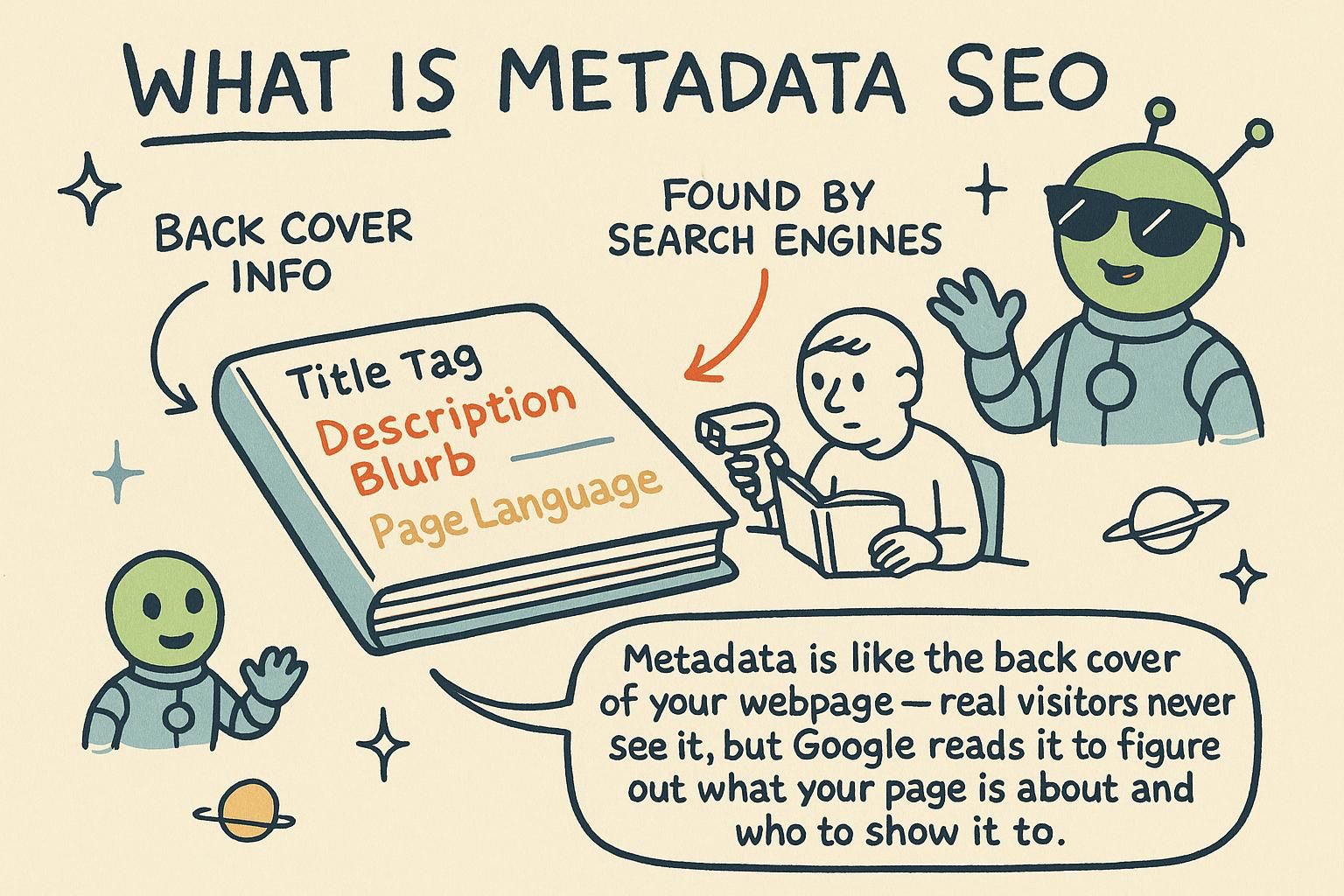
<meta name="description" content="Simple sourdough recipes, from mixing your first dough to a crisp golden crust, with timings for each step." />Picture a book on a shelf. The title is printed on the spine so you can find it, and the description is the blurb on the back that helps you decide whether to open it.

The <title> element is required, and there is exactly one per document. It does three jobs: it labels the browser tab, it is the default name when someone bookmarks the page, and it is the headline a search engine shows for your result. Write it for a human scanning a list, put the distinctive words first, and keep it to roughly 60 characters so it is not cut off with an ellipsis.
The <meta name="description"> tag is the sentence shown under that headline. It is not a ranking factor, but it is your pitch to the person deciding whether to click, so make it specific and write a different one for every page. Aim for around 150 to 160 characters. If you leave it out, the search engine writes its own summary by pulling a snippet from the page text, and its guess is rarely as good as your sentence.
<title>Sourdough for beginners: your first loaf</title>
<meta name="description" content="A step-by-step first sourdough, with timings and a fix for every common mistake." />The <title> is the strongest piece of on-page text you fully control for what a result says on the SERP (the search engine results page, the list of results a query returns). It is worth treating as copy, not a label: the distinctive words go first, because the end gets truncated. The character count everyone quotes is really a pixel-width limit of roughly 600 pixels, so a title of wide characters is cut sooner than a count suggests. Search engines also rewrite titles they judge unhelpful, for example one that repeats a word for effect or does not match the query, so a clear, accurate title survives more often than a padded one.
The description is not an input to ranking. Its entire job is click-through, the share of people who see your result and click it, and a sharper description lifts that share. Two production rules matter more than length. First, every page gets its own title and description; shipping one global pair across a whole templated site means near-identical results that compete with each other and read as boilerplate. Second, on a site that builds pages from data, generate both from the page's own fields rather than a fixed string, so a product page names its product and a recipe page names its recipe.
<title> is your tab label and the headline people click in search results, so make it clear. The <meta name="description"> is the blurb underneath. Both live in the head, and giving each page its own pair took me far less effort than I expected for how much it helps. <title> per page, distinctive words first, around 60 characters. The description does not affect ranking, it only wins the click, so write a specific one per page instead of one global line. Leave it out and the engine invents a snippet you did not choose. Charset and viewport, revisited
The skeleton in Your first HTML page opened with two meta tags that are quick to paste and forget. They are worth a second look, because both change how the page is read and rendered before any content appears.
The first tag is the character encoding:
<meta charset="UTF-8" />It tells the browser which alphabet the letters are written in, so accented characters, curly quotes, and emoji show correctly instead of turning into odd symbols. Always use UTF-8; it covers every language and every emoji.
The second tag is the viewport, and it makes the page fit a phone screen:
<meta name="viewport" content="width=device-width, initial-scale=1" />Without it, a phone assumes the page was built for a wide desktop and shrinks the whole thing down until the text is too small to read. With it, the page matches the width of the device. Think of it as telling the browser the real size of the paper it is printing on.
<meta charset="UTF-8"> sets the character encoding, the mapping from the raw bytes of the file to the characters they stand for. It has to appear early, inside the first 1024 bytes of the document and as the first thing in the head, because the parser needs to know the encoding before it decodes the text that follows. UTF-8 is the only answer you should use; it encodes every character in every language.
<meta name="viewport" content="width=device-width, initial-scale=1"> is what makes a page responsive on phones. width=device-width matches the page's layout width to the device's own width, and initial-scale=1 opens it at normal zoom rather than zoomed out. Leave this tag off and mobile browsers fall back to assuming a roughly 980-pixel desktop layout, then scale it down to fit. Do not add user-scalable=no or a maximum-scale to lock zooming; it stops people pinching to enlarge text, which many readers rely on.
The charset declaration exists because parsing is a two-stage problem: the browser has a stream of bytes and needs an encoding to turn them into characters. If the encoding is declared late, or conflicts with what the parser guessed from the first bytes, the browser can throw away its work and re-parse from the top under the correct encoding, a small cost you avoid by putting <meta charset="UTF-8"> first. If the response also carries a charset in its HTTP Content-Type header, the header wins, but you still include the meta tag so the file is correct when saved or served without that header. UTF-8 is the settled default of the web; anything else is a legacy situation to migrate away from.
The viewport tag is the switch between two rendering modes. Without it a mobile browser renders into a wide virtual canvas (historically about 980 CSS pixels) and scales the result down, which is why an un-tagged page looks like a shrunken desktop. width=device-width binds the layout viewport to the device, which is the precondition for any responsive CSS to behave. Suppressing zoom with user-scalable=no or a low maximum-scale is an accessibility failure: it is called out in WCAG (the Web Content Accessibility Guidelines, the standard reference for accessible web content, covered in Accessibility) because it blocks people from enlarging text they cannot otherwise read.
<meta charset="UTF-8"> keeps accented letters and emoji from turning into gibberish, so always include it. The viewport line makes the page fit a phone instead of shrinking to a tiny desktop. Two tags you copy once and rarely touch again, but skipping them shows up fast. UTF-8, nothing else. The viewport tag with width=device-width is what makes responsive CSS work on phones, and never disable zoom, people rely on it. user-scalable=no fails WCAG, so leave it out. Open Graph and social cards
When you paste a link into a chat or a social post, a small preview card often appears with a picture, a title, and a line of text. That card is not the platform guessing. The page hands it the picture and words to show, using a set of tags called Open Graph in the head:
<meta property="og:title" content="Sourdough for beginners" />
<meta property="og:description" content="Your first loaf, step by step." />
<meta property="og:image" content="https://breadschool.example/loaf.jpg" />Notice these use property where the description tag earlier used name. That is the shape Open Graph tags take; copy the pattern and change the words and the image address. Think of it as packing a little preview into the page, ready for whenever someone shares it.
Open Graph is a shared vocabulary of meta tags that describe a page as a shareable object. It started at Facebook and is now read by nearly every platform that shows link previews. The tags use property="og:..." and the essentials are five:
<meta property="og:title" content="Sourdough for beginners" />
<meta property="og:description" content="Your first loaf, step by step, with timings." />
<meta property="og:image" content="https://breadschool.example/loaf.jpg" />
<meta property="og:url" content="https://breadschool.example/sourdough" />
<meta property="og:type" content="article" />Twitter, now X, reads its own twitter: tags but falls back to the Open Graph ones, so you only need to add the piece that changes the layout:
<meta name="twitter:card" content="summary_large_image" />That gives you the big-image card rather than the small thumbnail. Make the og:image around 1200 by 630 pixels so it fills the card cleanly, and check your result in a platform's own link-preview debugger before you rely on it.
The audience for these tags is a social scraper: a bot a platform runs when a link is posted, which fetches the page, reads only the head, and does not scroll, click, or usually run JavaScript. Everything about how you write Open Graph follows from that. The og:image must be an absolute URL, including the https:// and domain, because a relative path like /loaf.jpg has no page context to resolve against when a remote scraper reads it. The tags use the property attribute rather than name because Open Graph is defined in RDFa, an older standard for embedding structured data in markup; the practical takeaway is only that og: tags use property and you should not "correct" them to name.
Two production realities catch people out. First, platforms cache the card they scraped, so editing your tags does not update an already-shared link until you force a re-scrape through the platform's debugger. Second, because most scrapers do not run JavaScript, Open Graph tags injected on the client by a single-page app are often not seen at all; the card falls back to a bare title or nothing. If your pages are built by JavaScript, the fix is to render the head on the server so the tags are present in the first response the scraper reads. This is the same constraint that shapes crawling, covered in the next section.
og:title, og:description, and og:image. They use property instead of name, which looks odd at first but is how they are written. Set them and your links stop showing up bare. og:title, og:description, og:image, og:url, og:type. Add twitter:card set to summary_large_image for the big image, and size the image around 1200 by 630. Always check the card in a platform debugger before you trust it. og:image quietly fails. Platforms cache the card, so a change needs a forced re-scrape in their debugger. And client-rendered tags often never get seen, which is why a JavaScript app has to render the head on the server. Favicons and other link tags
The tiny icon in the browser tab, next to the page title, is the favicon. It is how someone spots your tab among a dozen others. You add one with a <link> tag in the head:
<link rel="icon" href="/favicon.png" />The rel="icon" part tells the browser this file is the page's icon, and href points to the image. A small square image, around 32 by 32 pixels, is plenty. It is a small touch, and it makes a site feel finished.
The <link> element connects your page to a related file, and the rel attribute says what that file is. The favicon uses rel="icon", and a modern PNG or SVG is a better choice than the old .ico format. Add an Apple touch icon too, which is the image iOS uses when someone saves your site to their home screen:
<link rel="icon" href="/favicon.svg" />
<link rel="apple-touch-icon" href="/apple-touch-icon.png" />One more <link> earns its place here: the canonical URL. When the same page is reachable at more than one address, for example with and without a trailing slash or with tracking parameters on the end, rel="canonical" names the one address you want treated as the real one:
<link rel="canonical" href="https://breadschool.example/sourdough" />That tells search engines to credit all the duplicates to that single URL rather than splitting the page's standing across them.
The rel attribute is a relationship keyword: it states what the linked resource is to this document, which is why one element covers icons, canonicals, stylesheets, and preloads. For icons, browsers accept several and choose by size and format; an SVG icon scales to any display without a separate file per size, with a PNG fallback for older browsers. The legacy favicon.ico is a multi-resolution format kept for compatibility and no longer the format to reach for first.
The canonical link is the one with real ranking consequences, so it is worth getting exactly right. It consolidates link equity, the ranking value passed along by links pointing at a page, onto the URL you nominate, instead of scattering it across duplicate addresses. Good practice is a self-referencing canonical on every page (each page names its own clean URL), which removes ambiguity when parameters or alternate paths appear. The failure mode is pointing the canonical at the wrong page: a template that hard-codes one canonical across a whole section tells search engines every page in it is a copy of one, and the rest drop out of the index. Other rel values such as preload and preconnect are performance hints that fetch or warm up a connection to a resource early; they belong to a page-speed discussion rather than this one, so treat them as a pointer, not a task here.
<link rel="icon"> and a small square image. It is a tiny thing that makes a site feel done. The <link> tag in the head is how you point a page at extra files like this. rel="icon" with a PNG or SVG rather than the old .ico, and add an apple-touch-icon for saved-to-home-screen. The canonical link, rel="canonical", names the real address when a page is reachable at several, so search engines credit one URL instead of splitting it. rel is a relationship keyword, which is why one element handles icons, canonicals, and preloads. An SVG icon scales without a file per size. The canonical is the high-stakes one: a self-referencing canonical per page is safe, but a template pointing every page at one URL drops the rest out of the index. Crawlability basics
Search engines send out programs that visit web pages, read them, and add them to a large list so people can find them later. That program is a crawler, and most of the time you want it to do its job and you do nothing special. If you have a page you would rather keep out of search, a rough draft or a private thank-you page, you say so with a robots meta tag:
<meta name="robots" content="noindex" />noindex means "please do not list this page in search results." Picture the crawler as a librarian walking the shelves and cataloguing each book; this tag is a note asking the librarian to skip this one.
A crawler reads your HTML, follows the links it finds to reach more pages, and indexes the content so it can serve it in results. You steer it with the robots meta tag. noindex keeps a page out of results, and nofollow tells the crawler not to pass any ranking credit through the links on the page:
<meta name="robots" content="noindex, nofollow" />Do not confuse this with robots.txt, a separate file at the root of your site that controls which pages a crawler is allowed to fetch at all. The meta tag controls indexing of a page the crawler has already reached; the file controls access.
Skip the old <meta name="keywords"> tag entirely. It once let pages list their own keywords, search engines stopped trusting it many years ago, and it does nothing today. What actually helps a page rank is ordinary good building: a clear title, real headings, semantic HTML that names each part of the page, descriptive link text, and a page that loads quickly.
It helps to separate three steps a search engine takes, because tags act on different ones. To crawl is to fetch the page. To index is to store and understand it for later. To rank is to order it against other pages for a given query. The robots meta tag with noindex acts on indexing; robots.txt acts on crawling; an X-Robots-Tag HTTP header can apply the same indexing rules to non-HTML files like PDFs. The classic mistake is blocking a page in robots.txt and also adding noindex to it: the crawler is not allowed to fetch the page, so it never sees the noindex, and the URL can linger in results with no description. If you want a page out of the index, let it be crawled and let the noindex be read.
Modern crawlers do render JavaScript, but on a delay and within a limited budget, so content that only appears after a client-side fetch is indexed slowly or not at all; the reliable answer is to server-render anything that must be found. To describe a page in a form a search engine can use directly, add structured data, machine-readable facts about the page. The standard way is a JSON-LD block, structured data written in JSON using the Schema.org vocabulary, placed in the head or body inside a <script type="application/ld+json"> tag:
{
"@context": "https://schema.org",
"@type": "Recipe",
"name": "Beginner sourdough",
"totalTime": "PT24H",
"recipeYield": "1 loaf"
}This does not raise your ranking on its own; it makes a page eligible for rich results, the enhanced listings with stars, prices, or recipe details that stand out on the SERP. As for ranking itself, most of what people tune is myth. The keywords meta tag has been ignored since around 2009. Repeating a keyword to seem more relevant is detected and works against you. The description is not a ranking input. What consistently wins is content that answers the query, semantic markup that makes the structure legible, links from other sites, and a page that is fast and stable to load. The tags in this chapter make a page presentable and correctly understood; they do not substitute for the page being worth ranking.
<meta name="robots" content="noindex">. That is the main knob you will ever reach for at this stage, so no need to overthink the rest yet. noindex, nofollow); the separate robots.txt file controls crawling. The old keywords meta tag is dead, so ignore it. Real ranking comes from a clear title, semantic HTML, good links, and a fast page, not from a magic tag. robots.txt and adding noindex, since the crawler never fetches the page to read the tag. JSON-LD earns rich results, not a ranking boost. Keywords meta is dead; content and semantics are what actually win.