Skip to content

Your first HTML page

docs.scrimba.com

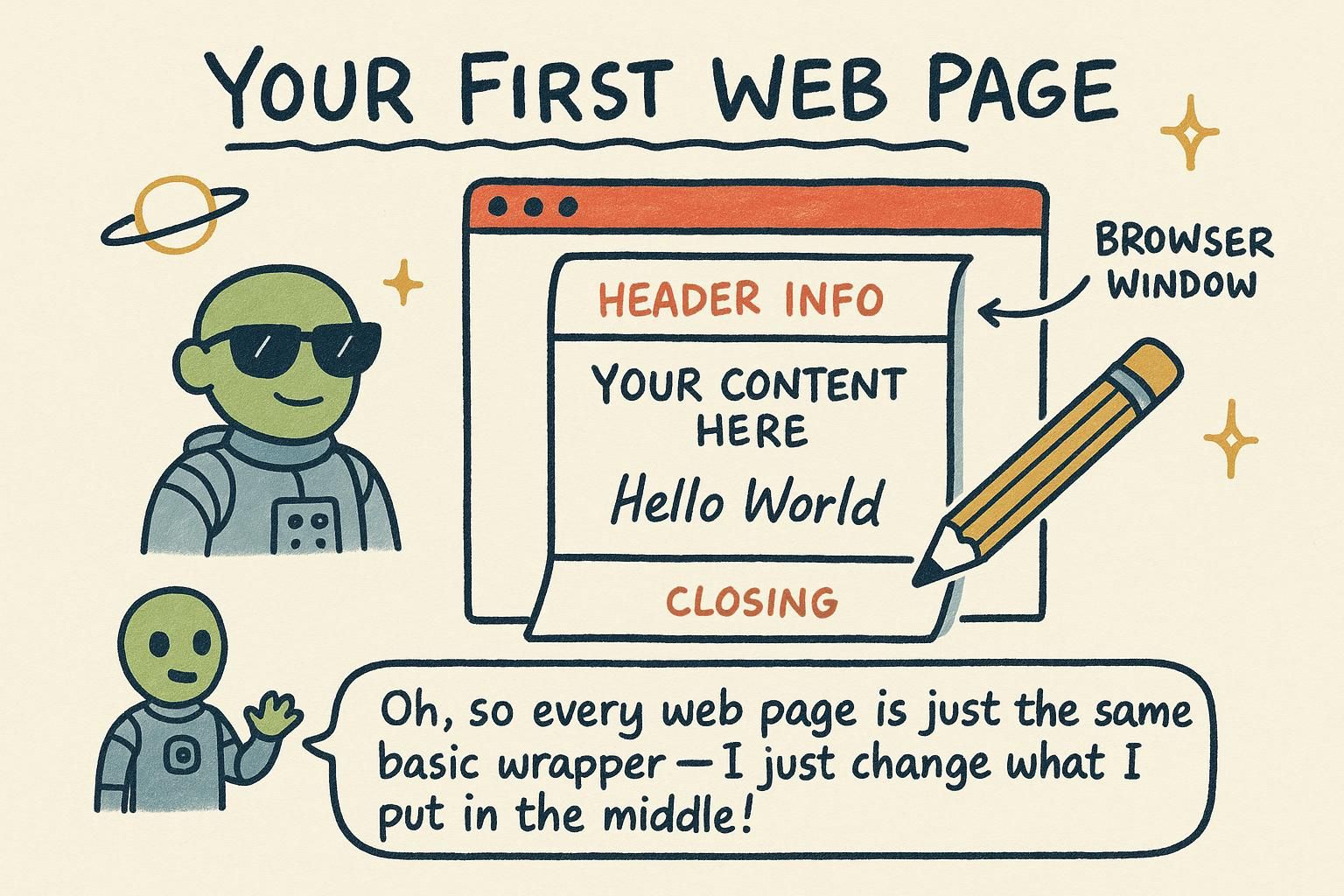
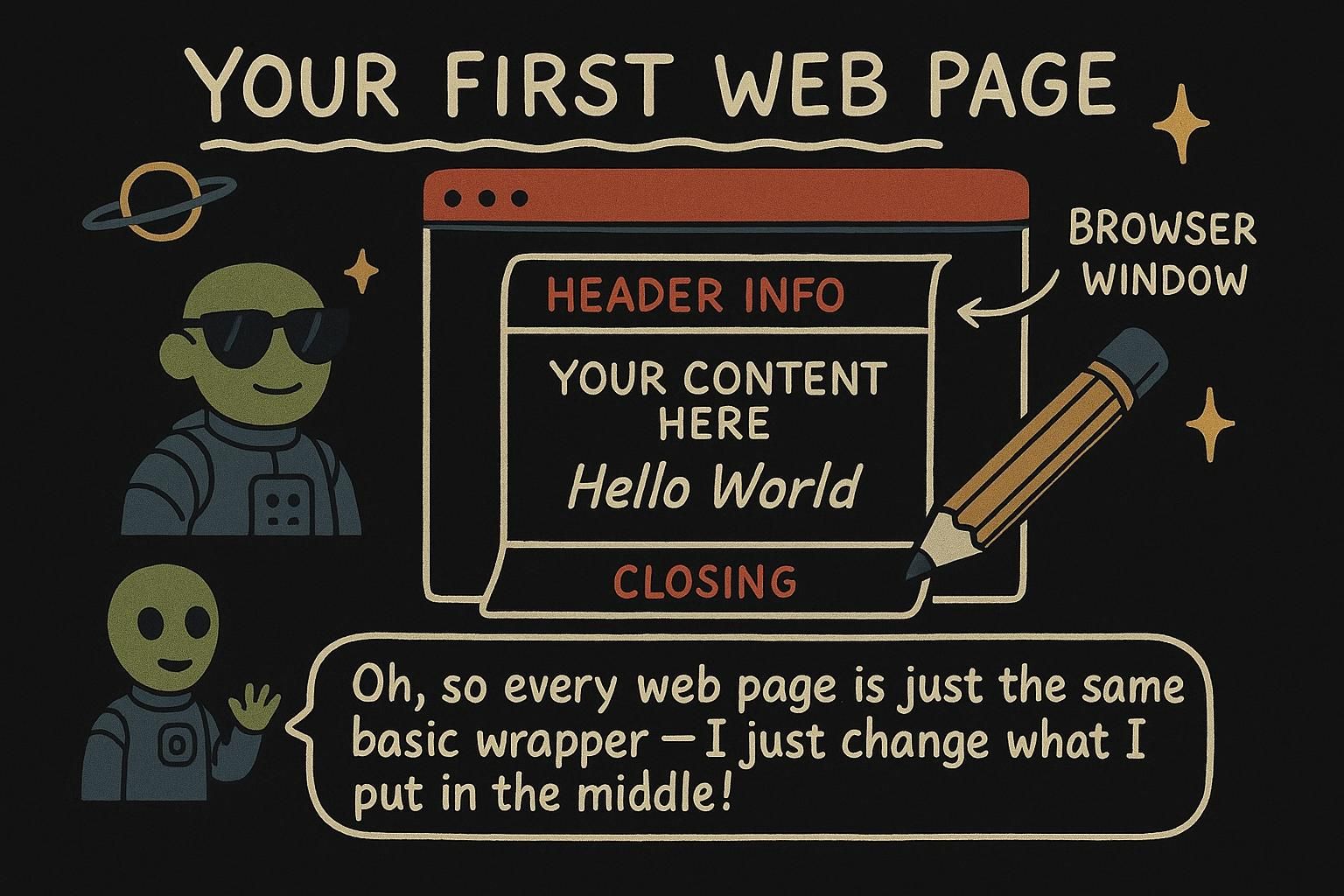
Every HTML document shares the same small frame: a line that declares the document type, a root element that wraps everything, a head for information about the page, and a body for the content people see. This chapter takes that frame apart one line at a time and then saves it to a file you can open in a browser.

The document skeleton

Here is the skeleton every page starts from. You can copy it exactly and change the parts inside the body:

html
<!DOCTYPE html>
<html lang="en">
  <head>
    <title>My first page</title>
  </head>
  <body>
    <h1>Hello</h1>
    <p>This is my first web page.</p>
  </body>
</html>

The first line, <!DOCTYPE html>, tells the browser this is a modern HTML page. After that comes the root element, <html>, which wraps everything else on the page. Inside it sit two boxes: <head> for behind-the-scenes information, and <body> for the words and pictures a visitor sees. Your heading and paragraph go in the body, because that is the part on show.

Think of the whole thing as a labelled parcel. The doctype is the stamp that says which postal system to use, <html> is the box, the head is the label on the outside, and the body is what is packed inside.

Every document is built from the same four parts, and it helps to name each one by its job:

html
<!DOCTYPE html>
<html lang="en">
  <head>
    <title>My first page</title>
  </head>
  <body>
    <h1>Hello</h1>
    <p>This is my first web page.</p>
  </body>
</html>

<!DOCTYPE html> is the document type declaration. It is not an HTML tag, it is a switch: its presence tells the browser to render in standards mode rather than the old quirks mode kept around for pages from the 1990s. <html> is the root element, the single element that contains every other one. Its lang="en" attribute states the page's language. Then <head> holds information about the page and <body> holds the content. The indentation is not required, but nesting the head and body inside <html> and their children inside them keeps the structure readable.

The skeleton looks like boilerplate, but each line changes how the browser treats the document.

html
<!DOCTYPE html>
<html lang="en">
  <head>
    <title>My first page</title>
  </head>
  <body>
    <h1>Hello</h1>
    <p>This is my first web page.</p>
  </body>
</html>

<!DOCTYPE html> is the document type declaration, and despite the angle brackets it is not an element. It is a mode switch. With it, the browser uses standards mode, meaning it follows the current specification for layout and box sizing. Omit it and the browser falls back to quirks mode, an emulation of 1990s behaviour that gets details like box widths wrong. There is exactly one correct doctype for HTML today, and it is this short one; the long, versioned doctypes from the XHTML era are obsolete.

<html> is the root element, the single node from which the whole document tree descends. Everything else is a descendant of it. The lang attribute belongs here because it sets the base language for the entire document. <head> and <body> are its only two permitted children, in that order: metadata first, content second. If you leave out <head> or <body> tags, the parser inserts them for you (that forgiving parsing again), but writing them keeps your source and the resulting tree in agreement, which is what you want when you are reasoning about either.

JunoThe document skeleton Every page starts from the same frame: <!DOCTYPE html>, then <html> wrapping a <head> and a <body>. Copy it as-is and put your own words in the body. You are not meant to memorise it yet; you will type it enough times that it sticks on its own.
JunoThe document skeleton Four parts, each with a job: the doctype switches on standards mode, <html> is the root, <head> is info about the page, <body> is the content. The lang attribute goes on <html> because it describes the whole document. Get this shape into your fingers and every new page starts the same reliable way.
JunoThe document skeleton The doctype is a mode switch, not a tag: with it you get standards mode, without it quirks mode and wrong box sizing. <html> is the root with exactly two children, head then body, and the parser will insert them if you forget. Write them anyway so your source matches the tree you are actually reasoning about.

What goes in the head versus the body

The two boxes inside <html> have different jobs. The <head> holds things the browser needs to know but the visitor does not read on the page. The <body> holds everything the visitor does see.

html
<head>
  <title>My recipe notes</title>
</head>
<body>
  <h1>Banana bread</h1>
  <p>Mix, pour, bake for an hour.</p>
</body>

The <title> sits in the head, and it is the name of the page: it shows up in the browser tab, not in the middle of the page. The heading and the paragraph sit in the body, so they appear on the page itself. A simple rule to start with: if a visitor should read it, it goes in the body.

The split is information about the page versus content of the page. The <head> is for metadata: data about the document rather than the document's content. The <body> is the content itself, the part rendered in the browser window.

html
<head>
  <title>Banana bread recipe</title>
</head>
<body>
  <h1>Banana bread</h1>
  <p>Mix, pour, bake for an hour.</p>
</body>

The clearest example is <title>. It lives in the head because it is not part of the page's content, yet it does real work: it names the tab, it is the label saved when someone bookmarks the page, and it is the headline a search engine shows in its results. Other head elements follow the same logic. They configure or describe the page. Nothing in the head is drawn in the page area, so if you find yourself wanting to put a heading or an image in the head, it belongs in the body instead.

The head is where the document describes and configures itself; the body is the content that description applies to. Everything in the head is metadata, data about the document rather than content shown in the page area.

html
<head>
  <title>Banana bread recipe</title>
  <meta name="description" content="A quick loaf: mix, pour, bake." />
</head>
<body>
  <h1>Banana bread</h1>
  <p>Mix, pour, bake for an hour.</p>
</body>

<title> earns its place several times over. It names the browser tab, it is the default text when the page is bookmarked or shared, and it is the clickable headline in search results, which makes it one of the highest-value strings on the page. A <meta name="description"> element supplies the summary line a search engine may show beneath that headline; it is never rendered on the page, which is the point.

The head also holds the elements that pull in your other files: <link rel="stylesheet"> for CSS and <script> for JavaScript, though a script often sits at the end of the body instead so the content parses first. The rule that keeps this clean: the head is parsed before the body, so anything the page needs configured before its content is read (its encoding, its stylesheet, its title) belongs there, and everything a person actually reads belongs in the body.

JunoWhat goes in the head versus the body Head is behind-the-scenes, body is on show. The <title> lives in the head and names the browser tab; your headings and paragraphs live in the body where people read them. If a visitor should see it, it goes in the body. That one question sorts almost everything.
JunoWhat goes in the head versus the body The head is metadata, information about the page; the body is the content of the page. <title> is the tab name, the bookmark label, and the search headline all at once, which is why it earns a spot in the head. Nothing in the head is drawn on the page, so a heading or image you meant to show belongs in the body.
JunoWhat goes in the head versus the body Head describes and configures the document, body is the content that configuration applies to, and the head is parsed first. <title> and <meta name="description"> are high-value strings a search engine reads, never drawn on the page. Anything the page needs set up before its content, its encoding and stylesheet, goes in the head; everything a person reads goes in the body.

Charset and viewport

Two more lines go in the head of nearly every page. You can copy them in as-is:

html
<head>
  <meta charset="UTF-8" />
  <meta name="viewport" content="width=device-width, initial-scale=1.0" />
  <title>My first page</title>
</head>

The first line tells the browser how to read your text so that accented letters, curly quotes, and emoji come out right instead of turning into odd symbols. The second line tells the browser to fit the page to the width of the screen, which is what makes it look sensible on a phone rather than a tiny zoomed-out version of the desktop page. You do not need to understand every word yet. Put both near the top of the head and your pages will behave.

Two <meta> elements belong in the head of essentially every page. A <meta> element is a void element that carries a single piece of metadata in its attributes.

html
<head>
  <meta charset="UTF-8" />
  <meta name="viewport" content="width=device-width, initial-scale=1.0" />
  <title>My first page</title>
</head>

The first sets the character encoding: the scheme the browser uses to turn the stored bytes back into letters. UTF-8 is the encoding that covers every character you are likely to use, from English to emoji, and it is the modern default. Put this line first in the head.

The second is the viewport tag, and it controls how the page maps to a mobile screen. width=device-width tells the browser to treat the page's width as the actual device width, and initial-scale=1.0 sets the starting zoom to 100%. Without it, phones assume the page was designed for a desktop and shrink the whole thing to fit, so your text arrives unreadably small. These two lines are close to non-negotiable, which is why starter templates include them by default.

Two <meta> elements are effectively required, and the reasons come down to how the browser processes the file.

html
<head>
  <meta charset="UTF-8" />
  <meta name="viewport" content="width=device-width, initial-scale=1.0" />
  <title>My first page</title>
</head>

<meta charset> declares the character encoding, the mapping the browser uses to convert the raw bytes of the file back into characters (the letters, punctuation, and symbols you typed). This must be the first thing in the head, and ideally within the first 1024 bytes of the document, because of a sequencing problem: the parser has to decode the bytes into text before it can read any of them, including the charset declaration itself. Browsers resolve the paradox by starting with a provisional decoding, then reparsing if the declared charset differs. Put the declaration first and there is nothing to reparse. Use UTF-8; it encodes the whole of Unicode and is the assumed default of the modern web.

The lang attribute back on <html> is a parsing concern too, though a semantic one. It names the document's natural language for software that cannot infer it: a screen reader (software that reads the page aloud for people who cannot see it) uses lang to pick the correct pronunciation rules and voice, and translation tools use it to know the source language. A missing or wrong lang gives blind users a page read in the wrong accent, or worse, phonetically nonsensical.

<meta name="viewport"> addresses a mobile-rendering default. Early smartphones, to cope with desktop-only pages, rendered into a virtual canvas around 980 pixels wide and then scaled it down to fit the screen. width=device-width overrides that, mapping the page's layout width to the device's own width so your responsive CSS has the real screen size to work with; initial-scale=1.0 sets the initial zoom to 1:1. Omit this tag and a responsive layout still computes against the 980-pixel assumption, so your carefully built mobile design renders at desktop width and is then shrunk, defeating the whole exercise. The tag itself does no styling; it hands your CSS the correct dimensions to style against.

JunoCharset and viewport Two lines go near the top of the head on almost every page: one so your text reads correctly, accents and emoji included, and one so the page fits a phone screen instead of shrinking. Copy them both in and do not overthink the wording yet. They quietly fix problems you would otherwise spend an afternoon chasing.
JunoCharset and viewport<meta charset="UTF-8"> sets how bytes become letters, so put it first in the head; UTF-8 covers everything from plain English to emoji. The viewport tag with width=device-width stops phones from shrinking a desktop-sized page down to nothing. Skip the viewport line and your mobile layout arrives tiny, which is the classic "why does my site look broken on my phone" bug.
JunoCharset and viewportcharset comes first because the parser must decode bytes into text before it can read the declaration itself; put it up top and there is nothing to reparse. lang on <html> is what a screen reader uses to pick pronunciation, so a wrong value reads the page in the wrong accent. Drop the viewport tag and your responsive CSS computes against a 980px canvas, so the mobile design you built renders at desktop width and gets shrunk.

Saving and opening a .html file

An HTML page is a plain text file, so you can make one in any text editor. The one thing that matters is the name: save it ending in .html.

html
<!DOCTYPE html>
<html lang="en">
  <head>
    <meta charset="UTF-8" />
    <title>My first page</title>
  </head>
  <body>
    <h1>Hello</h1>
    <p>This is my first web page.</p>
  </body>
</html>

Save that as index.html. Then find the file on your computer and double-click it: it opens in your browser and shows your heading and paragraph. There is no server to start and nothing to install. The .html ending is the signal that tells your computer to open it as a web page rather than as a wall of code. Change a word, save, and refresh the browser tab to see the update.

An HTML document is a plain text file. Write it in any editor and save it with a .html extension. The file extension, the part of the name after the dot, is what tells the operating system and the browser to treat the file as HTML.

html
<!DOCTYPE html>
<html lang="en">
  <head>
    <meta charset="UTF-8" />
    <title>My first page</title>
  </head>
  <body>
    <h1>Hello</h1>
    <p>This is my first web page.</p>
  </body>
</html>

Save that as index.html. The name index is a convention worth adopting early: a web server serving a folder looks for index.html by default, so it becomes the home page of any site you build later. To view it now, double-click the file, or drag it onto a browser window. The address bar will read something like file:///Users/you/index.html, the file:// telling you the browser is reading straight from disk rather than over the network. Editing is a loop: change the file, save, refresh the tab.

An HTML document is plain text, and the browser needs only the file itself to render it. Save it with a .html extension so the operating system associates it with the browser and the browser serves it as HTML rather than as text to display literally.

html
<!DOCTYPE html>
<html lang="en">
  <head>
    <meta charset="UTF-8" />
    <title>My first page</title>
  </head>
  <body>
    <h1>Hello</h1>
    <p>This is my first web page.</p>
  </body>
</html>

Opening a local file uses the file:// protocol: the address becomes something like file:///Users/you/index.html, and the browser reads directly from disk. That is perfect for a single page, but it has a ceiling. Under file://, the browser applies a strict same-origin policy (the security rule that limits what a page can load from other locations), and treats every local file as a separate origin, so things like fetch requests to load data, and ES module imports, are blocked. Features that depend on being served over http:// will not work from a double-clicked file.

The fix, when you reach that point, is a local development server: a small program that serves your folder over http://localhost so the browser treats it as a real site. Editor extensions and one-line commands do this for you. For a plain first page, though, file:// is exactly right: no server, no build step, no dependencies. Save the file, double-click, and the browser renders it. The index.html name is worth keeping, since a server serving a directory returns index.html by default, making it the entry point once you do move to http://.

JunoSaving and opening a .html file A web page is a text file whose name ends in .html. Save yours as index.html, double-click it, and the browser opens it right away, no setup at all. To see a change, save the file and refresh the tab. That save-and-refresh loop is the whole rhythm of building a page.
JunoSaving and opening a .html file Save the file with a .html extension and the browser knows to render it as a page; double-click or drag it in and the address bar shows file://, meaning it is reading from disk. Name it index.html because servers treat that as the default home page later. Then it is a loop: edit, save, refresh.
JunoSaving and opening a .html file Double-clicking opens the file over file://, which is fine for one page but enforces a strict same-origin policy, so fetch and ES module imports are blocked. When you hit that wall, run a local dev server so the page loads over http://localhost and behaves like a real site. Keep the name index.html, since that is the default a server returns for a folder.