

 Learn Git and GitHub
The commit loop
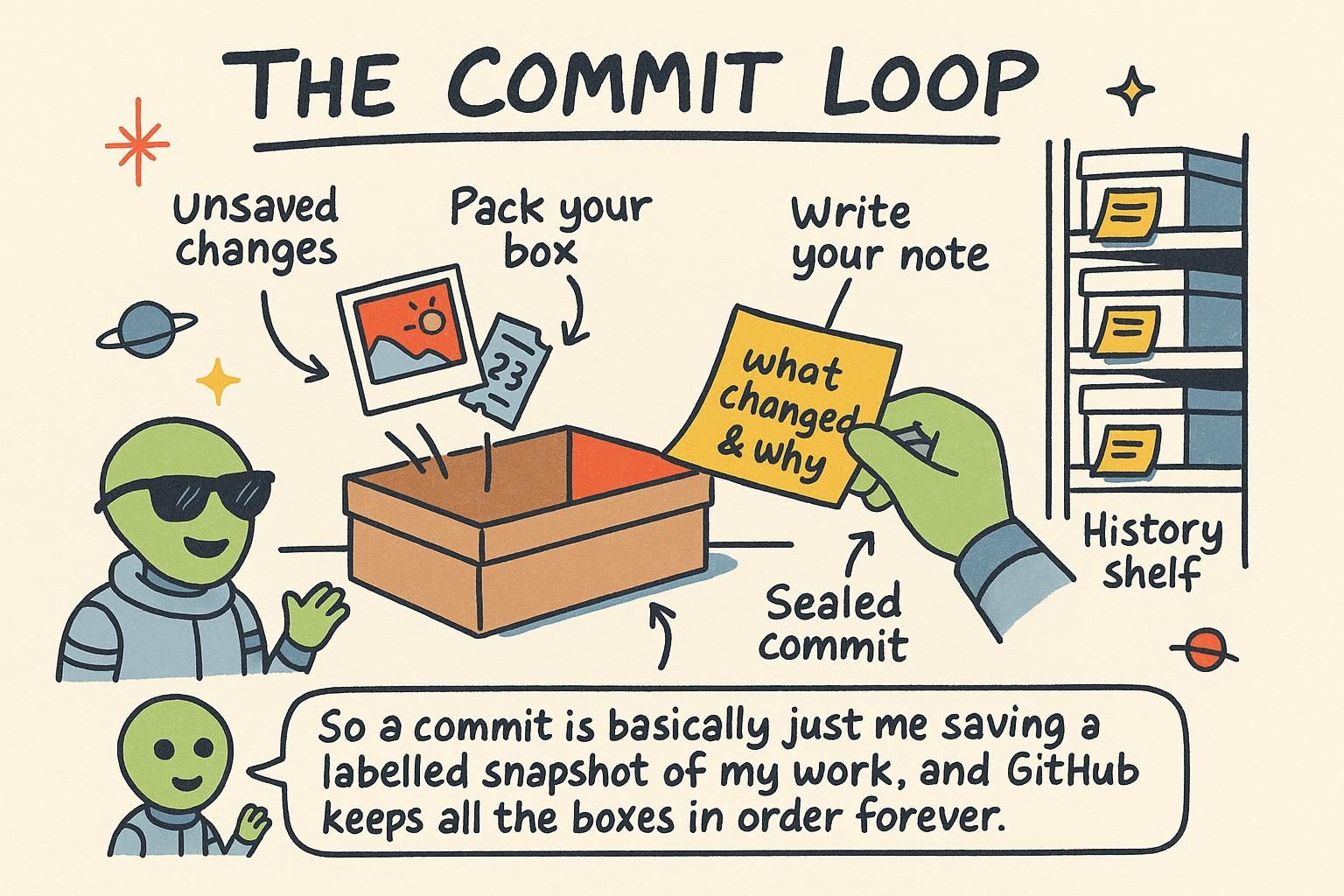
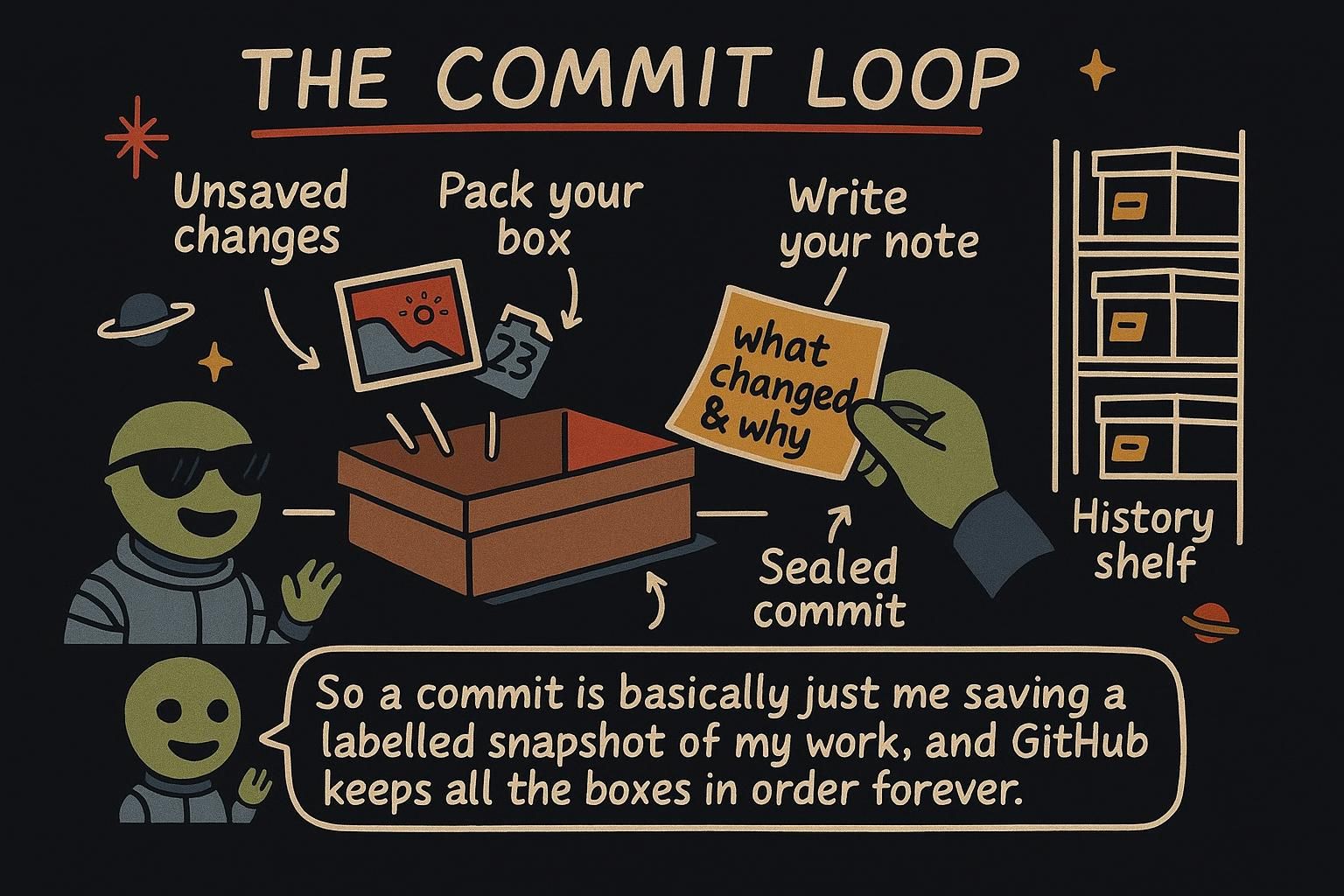
Say you have been working on weather-app for the last twenty minutes. You fixed a real bug in src/index.js, the temperature conversion was off, and while you were in there you also started restyling styles.css, but that change is half finished and not ready for anyone else to see. You want to save the bug fix as its own checkpoint right now, without dragging the unfinished styling along with it.
That is exactly what the commit loop is for. If you have not set up a repository yet, Your first repository walks through git init and cloning first. From here on, this chapter assumes you have one open.
The three stops: working directory, staging area, commit
Every change you make in Git passes through three stops before it becomes permanent history. Your working directory is the project as it sits on disk right now, the files you are actively editing. The staging area is a holding spot where you place exactly the changes you want to save next. A commit is the saved snapshot itself, once you write it, plus the message describing it.
Picture packing for a move. Your whole house is the working directory: everything you own, in whatever state it is in. The boxes you have packed and taped by the front door are the staging area: only what you have deliberately chosen to take. The moving truck driving away with those boxes is the commit: a record of exactly what left, at that moment, with a label on the outside saying what is inside.
Here is that mental model showing up in a real terminal. After editing both files in weather-app, git status reads the current state without changing anything:
$ git status
On branch main
Changes not staged for commit:
  (use "git add <file>..." to update what will be committed)
  (use "git restore <file>..." to discard changes in working directory)
        modified:   src/index.js
        modified:   styles.css

no changes added to commit (use "git add" to commit)
Both files show up as "not staged" because editing a file only changes your working directory. Nothing moves into the staging area until you tell Git to put it there with git add, which is the next section.
This is where the staging area's whole reason for existing becomes clear. The staging area lets you choose exactly what goes into your commit, independent of what else is still sitting edited in your working directory. Without it, saving a checkpoint would force you to take every change on disk at once, ready or not.
With it, you can stage the finished bug fix in src/index.js, leave the half-done styles.css out, and commit only the piece that is actually done. This one detail, that staging and your working directory can hold different things at the same time, trips up nearly everyone the first week. Once it clicks, the rest of Git's daily workflow makes a lot more sense.

git add, and that is what lets you save one finished change while leaving a half-done one out. Staging changes: git add
git add moves a change from your working directory into the staging area. Point it at the file whose changes you want in the next commit:
$ git add src/index.js
$ git status
On branch main
Changes to be committed:
  (use "git restore --staged <file>..." to unstage)
        modified:   src/index.js

Changes not staged for commit:
  (use "git add <file>..." to update what will be committed)
  (use "git restore <file>..." to discard changes in working directory)
        modified:   styles.css
src/index.js moved to "Changes to be committed", the bug fix is staged and ready. styles.css is still listed under "not staged", exactly where you want it while the restyle is unfinished. Running git add styles.css too would stage it as well; running git add . stages every changed file in the current folder at once, which is convenient once you trust that everything on disk is actually ready to go.
git add <file> moves that file's current changes into the staging area, ready for the next commit. Files you have not added yet stay out, so you can finish one thing and leave another mid-edit. git add . stages every changed file at once, handy once everything is actually ready. Saving a snapshot: git commit
Once the staging area holds what you want, git commit saves it as a permanent snapshot, with the -m flag (short for "message") supplying the description that travels with it:
$ git commit -m "Fix temperature conversion in Celsius-to-Fahrenheit formula"
[main 4f2a1c9] Fix temperature conversion in Celsius-to-Fahrenheit formula
 1 file changed, 1 insertion(+), 1 deletion(-)
Only src/index.js went in, because that is all you staged. styles.css is still sitting edited in your working directory, untouched, waiting for whenever the restyle is finished. The short id, 4f2a1c9, names this exact commit, and the History chapter covers reading a project's full list of commits like this one.
git commit -m "message" saves whatever is currently staged as a permanent snapshot, with the message you give it. Anything you did not stage stays out and stays editable. Keep the message short and clear about what the commit does, future you will read it back more often than you expect.