Skip to content

Remotes and GitHub

docs.scrimba.com

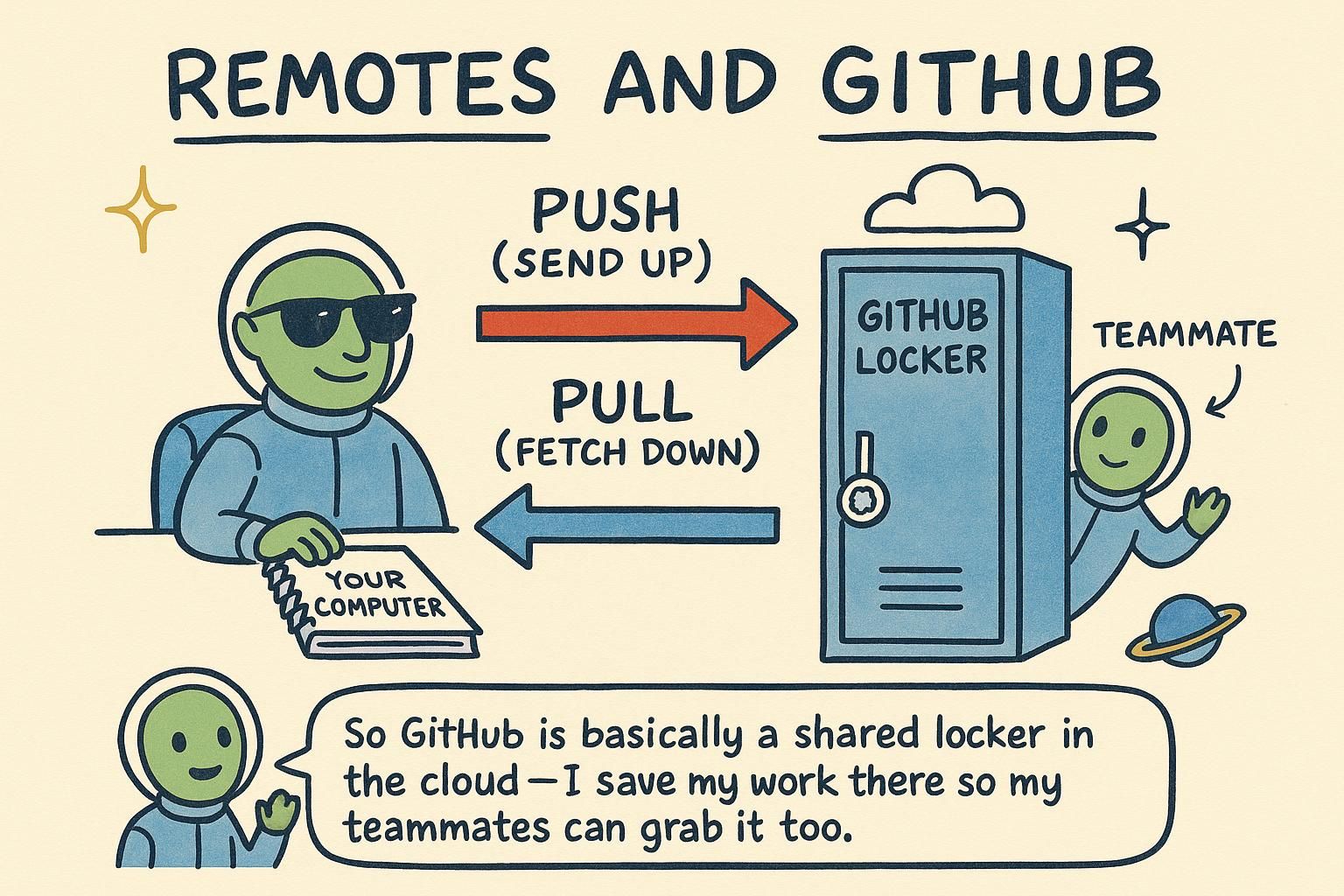
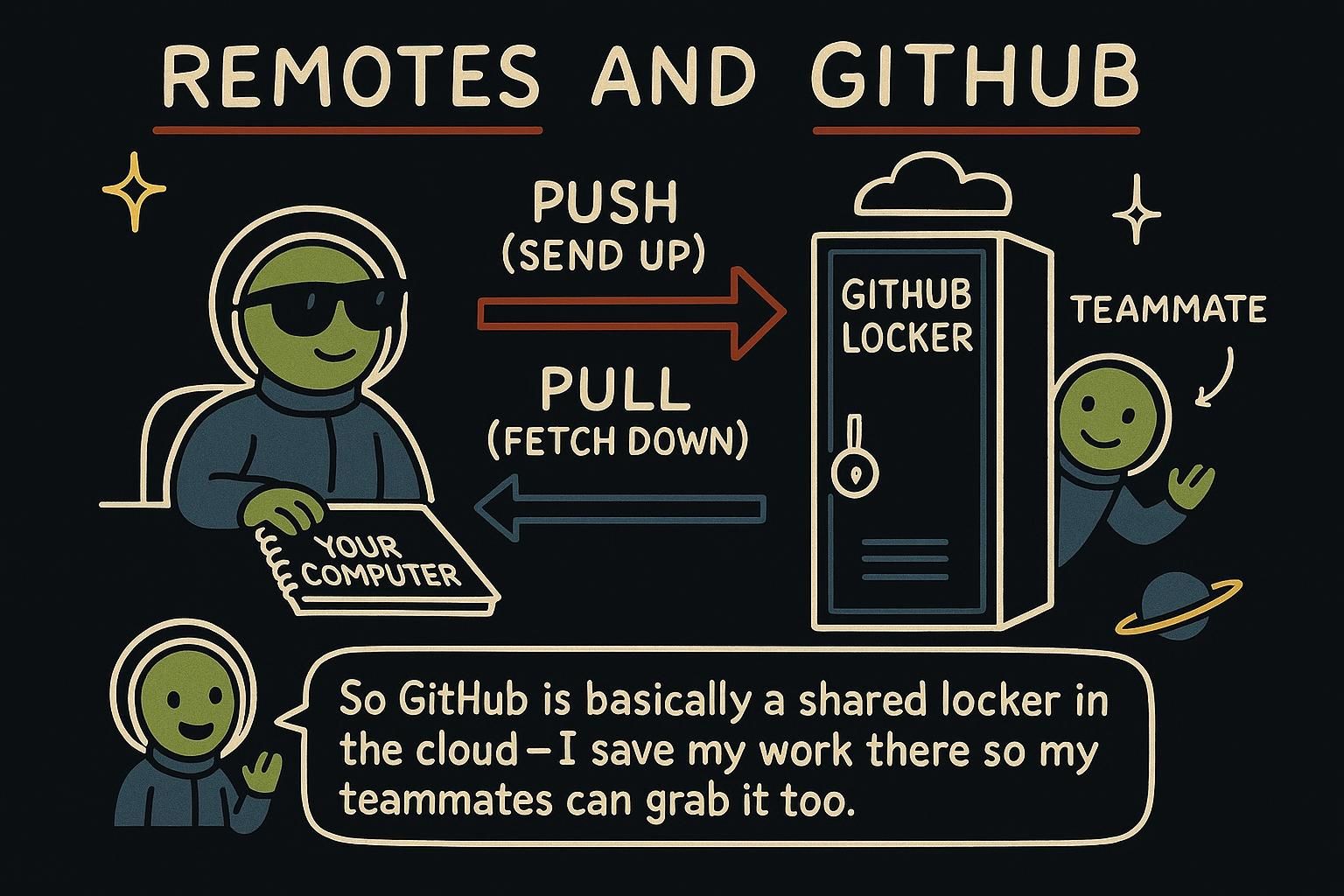
Every repository in this handbook so far has lived in one place: your own machine. That works fine right up until you want a backup that survives a dead laptop, want to pick up the project from a second computer, or want anyone else to touch the code. What you need is a copy of the repository sitting somewhere every machine involved can reach. That copy is called a remote, and GitHub is where most developers put it.

What a remote is (and where GitHub fits in)

A remote is a copy of your repository hosted somewhere other than your own machine, most often on GitHub. When you clone a repository, Git already sets one up for you, named origin by default. Run git remote -v (the -v asks for the URLs as well as the names) to see it:

bash
$ git remote -v
origin  https://github.com/mara-chen/weather-app.git (fetch)
origin  https://github.com/mara-chen/weather-app.git (push)

Every remote Git knows about is listed twice, once for fetching and once for pushing, because in theory the two could point at different addresses. In practice they're almost always the same one. origin is the nickname Git assigns automatically on clone. You can rename it or add a second remote pointing somewhere else, but nearly every project you touch will call its main remote origin.

This is a good moment to restate the distinction that trips up nearly everyone starting out: Git and GitHub are not the same thing. Git is the version-control tool running on your machine, recording commits whether or not you're connected to anything. GitHub is a website that hosts a copy of your repository and gives you a remote to push to and pull from. git remote, git push, and git pull are the commands that connect the two: they're how the Git running on your laptop talks to a repository sitting on GitHub's servers.

A remote is nothing more than a name mapped to a URL, stored in your repository's config. Alongside it, Git keeps a remote-tracking branch: a local bookmark recording where a branch on that remote stood the last time your machine checked in. origin/main is exactly that. It is not the actual main branch sitting on GitHub. It's your repository's memory of where GitHub's main was as of your last fetch or pull. List the remote-tracking branches Git currently holds with git branch -r:

bash
$ git branch -r
origin/main

Everything a remote does runs through that config entry plus these tracking bookmarks. There's no background connection and nothing watching for changes. Git only updates its picture of the remote when you tell it to, with fetch or pull, which is exactly what the rest of this chapter covers.

JunoWhat a remote is A remote is a copy of your repository hosted somewhere else, usually on GitHub, and Git calls the default one origin. Run git remote -v any time to see which remotes your repository knows about. Git and GitHub are not the same thing: Git is the tool on your machine, GitHub is where your remote often lives. Getting that split straight early saves a lot of confusion later.
JunoWhat a remote isorigin is only the default name Git gives the remote it sets up on clone, so you can rename it or add more remotes when a project needs them. git remote -v shows every remote's URL for both fetch and push. Keep the Git versus GitHub split in mind: the commands you run locally are Git, and GitHub is one destination among several those commands can reach.
JunoWhat a remote is A remote is a name mapped to a URL in your config, paired with remote-tracking branches like origin/main, your machine's memory of where that branch stood at your last fetch or pull. Nothing updates on its own; Git only checks the remote when asked. That gap between what GitHub actually has and what your remote-tracking branch remembers is behind nearly every fetch-versus-pull surprise.

Where to host your remote: GitHub and the alternatives

Everything a remote does is plain Git, and that has a consequence worth knowing early: the host on the other end is swappable. To Git, every host is a URL in your config, and git push, git pull, and git fetch behave identically against all of them. What a host adds sits one layer up: a web view of your code, a review flow, issue tracking, and access control. Here is the landscape, with the trade-offs stated plainly:

  • GitHub is the biggest by far and hosts the large majority of open-source work. Its strength is the network: the projects you want to contribute to are already there, tutorials assume it, and employers look for your profile on it. The trade-off is that it is a closed platform (owned by Microsoft), and the more you lean on its extras beyond Git hosting, the more tied to it you become.
  • GitLab is the closest full alternative, with the same core features under slightly different names (pull requests are "merge requests" there). Its standout is a self-managed edition you can run on your own servers, which is why companies that keep code in-house often pick it. The trade-off is that it bundles a lot, and the platform can feel heavier than the code hosting you came for.
  • Bitbucket is the host from Atlassian, built to sit next to its project-tracking and documentation tools, Jira and Confluence. If your team already lives in those tools, it slots straight in. Outside that ecosystem it has the smallest community of the big three and little open-source presence.
  • Codeberg is a nonprofit host for open-source projects, run on the open-source platform Forgejo. The draw is that no company owns your host and the platform itself is open source. The trade-off is scale: fewer integrations, a smaller community, and a focus on open source rather than private team work.
  • Self-hosting underlies all of these: run Forgejo or Gitea, both free and open source, or GitLab's self-managed edition on hardware you control. You get full control and privacy; the trade-off is that keeping it running becomes your job.

This handbook uses GitHub in its examples because it hosts most open-source work and is where you are most likely to collaborate first. Every command in this chapter transfers unchanged to any other host: swap the URL and the daily loop stays the same. The differences live one layer up, in each site's web interface for reviewing and merging work, which is where the next chapter's pull request flow comes in.

When the choice is yours to make, it is rarely about Git features, because the core set (hosted repositories, reviews, issues, CI pipelines) exists everywhere. It comes down to context: contributing to open source or building a public profile points to GitHub, a company that runs on Atlassian tools points to Bitbucket, code that must stay on your own infrastructure points to GitLab self-managed or Forgejo, and a values-driven open-source project may feel most at home on Codeberg. The choice is also not forever. Moving the repository itself between hosts is one git remote set-url plus a push; the expensive part of a migration is the layer above Git, the issues, wikis, and CI configuration, which do not travel with the commits.

Self-hosting deserves a clear-eyed look before you commit to it. Forgejo and Gitea run comfortably on a small server, but the operational load is real: security updates, backups of both the repositories and the platform's own database, account and SSH-key management, and uptime, because a down forge blocks every push and pull your team makes. It earns its keep when compliance rules keep code off third-party infrastructure, in air-gapped environments, or when an organization wants its tooling under its own control. Below the web layer nothing changes: every one of these hosts speaks the same Git protocol, which is why your push and fetch cannot tell them apart.

JunoWhere to host your remote GitHub is where most projects live and the safest default when you are starting out, but it is one host among several: GitLab, Bitbucket, and the nonprofit Codeberg all store the same Git repositories. Push and pull work the same wherever the remote lives, so nothing you learn here is wasted if a project lives somewhere else.
JunoWhere to host your remote Hosts differ one layer up from Git: GitLab calls pull requests merge requests and offers a self-managed edition, Bitbucket plugs into Atlassian's tools, and Codeberg runs on open-source Forgejo. Pick based on where your collaborators and tooling already are, and remember a later move is cheap on the Git side; it is the issues and CI that do not travel.
JunoWhere to host your remote Since a remote is a name mapped to a URL, moving a project between hosts is git remote set-url plus one push. Self-hosting Forgejo or Gitea buys control and privacy and costs you patching, backups, and uptime; take that trade when policy demands it, not for fun, says the person who has carried the pager for one. Everything host-specific lives in the web layer above the Git protocol.

Sending and getting your work: git push and git pull

With a remote in place, two commands cover most of the daily work. git push sends your local commits up to the remote. git pull brings down commits made elsewhere and merges them into the branch you're on.

bash
$ git push origin main
Enumerating objects: 5, done.
Writing objects: 100% (3/3), 312 bytes | 312.00 KiB/s, done.
To https://github.com/mara-chen/weather-app.git
   9f8e7d6..a1b2c3d  main -> main

origin is the remote, main is the branch you're sending. That last line is the part worth reading: it shows main on the remote moving from one commit to the next.

Pulling works the same way, in reverse:

bash
$ git pull origin main
remote: Enumerating objects: 4, done.
Unpacking objects: 100% (4/4), done.
Updating a1b2c3d..b7c9e21
Fast-forward
 src/index.js | 8 ++++++--
 1 file changed, 6 insertions(+), 2 deletions(-)

That's the whole loop for working alongside other people on one project: pull down whatever changed before you start, do your own work and commit it, push it back up. Pull before you push whenever you share a branch with anyone else. Skip the pull and your push can land on top of commits you never saw, which Git will refuse rather than risk losing someone's work.

The first time you push a new branch, add -u (short for --set-upstream):

bash
$ git push -u origin feature/add-forecast-icons
Enumerating objects: 5, done.
Writing objects: 100% (5/5), 412 bytes | 412.00 KiB/s, done.
To https://github.com/mara-chen/weather-app.git
 * [new branch]      feature/add-forecast-icons -> feature/add-forecast-icons
branch 'feature/add-forecast-icons' set up to track 'origin/feature/add-forecast-icons'.

That records feature/add-forecast-icons as tracking origin/feature/add-forecast-icons, a link called the upstream. Once it's set, every push and pull after that can drop the remote and branch name and run plain git push or git pull on the branch. If a branch has no upstream configured yet, Git says so and prints the exact command to fix it, so you rarely need to remember the flag, only recognize the message when it shows up.

That upstream link lives as two plain lines written into your repository's config the moment -u runs: branch.feature/add-forecast-icons.remote names the remote, branch.feature/add-forecast-icons.merge names the branch on it. Run git config --get branch.main.remote on a branch you've pushed before and you will see exactly that value come back. Those two lines are also what git status reads to tell you your branch is two commits ahead of origin/main, or that the two have drifted apart: the comparison runs entirely against your remote-tracking branch, a local check with nothing fetched from GitHub. Set the upstream once, and every ahead-behind count Git shows you afterward is reading off that same pair of config lines.

JunoSending and getting your workgit push sends your commits up to the remote, and git pull brings down commits made elsewhere and merges them into your branch. Pull before you start working and push when you are done, and you stay in sync with anyone else touching the project. Skipping the pull is the most common reason a push gets rejected.
JunoSending and getting your workgit push origin main sends commits, git pull origin main fetches and merges them, and once a branch has an upstream set with git push -u, both commands work without naming the remote or branch again. Pull before you push on a shared branch, or your push gets rejected because the remote already moved past your local history.
JunoSending and getting your work The upstream you set with git push -u comes down to two config lines, branch.<name>.remote and branch.<name>.merge, written the moment the flag runs. git status reads that same pair to tell you how far ahead or behind origin/main your branch is, a comparison it makes entirely against your local remote-tracking branch. Set it once per branch and every shorthand push or pull, and every ahead-behind count, comes free.

git fetch vs git pull

git pull does two things in one step: it downloads whatever changed on the remote, then immediately merges those changes into the branch you're on. git fetch does only the first half. It downloads new commits but never merges them into your branch. Your current branch, and your working files, stay exactly where they were until you tell Git to merge or pull.

This is the trip-up almost everyone hits at least once: run git fetch, see no visible change anywhere, and assume nothing happened on the remote. Something did happen: fetch has not touched your working branch yet. To see what came down, look at the remote-tracking branch from earlier in this chapter: git log origin/main shows commits sitting on the remote that haven't reached your local main. When you're ready to bring them in, git merge origin/main does it, or git pull runs fetch and that merge for you in one command.

Reach for fetch on its own when you want to look before you merge. Say a teammate, Priya, mentions she pushed something to main: git fetch followed by git log origin/main or git diff main origin/main lets you read exactly what changed before it lands in your working branch. Once you're satisfied, git merge origin/main brings it in. Day to day, most people reach straight for git pull, because seeing and merging in one step is what they want anyway. Fetch earns its keep on a shared branch where you'd rather read the incoming work first, or before you decide whether now is a good moment to merge at all.

What fetch actually updates is governed by a refspec: a mapping, stored in your remote's config, that tells Git which branches on the remote to bring down and which local names to store them under. The default refspec on a normal clone reads roughly as +refs/heads/*:refs/remotes/origin/*, meaning "take every branch under the remote's heads and mirror it into my remote-tracking branches, moving them to match even if that overwrites what they used to point at." That's the entire mechanism behind origin/main staying current: fetch reads the remote's branches and rewrites your remote-tracking branches to match, then stops. Nothing about your own main changes until a separate merge, rebase, or pull acts on what fetch brought down.

Junogit fetch vs git pullgit pull downloads new commits and merges them into your branch in one step. git fetch only downloads them and updates Git's memory of where the remote stands; your branch stays put until you merge. Seeing no change in your files right after a fetch is expected, the new commits are waiting on the remote-tracking branch.
Junogit fetch vs git pullgit fetch downloads without merging, git pull downloads and merges in one step. Reach for plain fetch when you want to read incoming commits with git log origin/main before they land in your branch, and pull when you're ready to merge them right away. Mixing the two up is one of the most common Git mix-ups on a team.
Junogit fetch vs git pull A refspec decides exactly what fetch pulls down and which remote-tracking branches it updates, origin/main included, and the default one mirrors every branch under the remote's heads. Fetch only ever moves your remote-tracking branches, never your checked-out branch, so merging or pulling stays a separate, deliberate step.

Where this leaves you

Push, pull, and fetch get your commits onto a shared remote and back again, which covers most of what day-to-day collaboration in Git requires. Everything here builds on the commit loop: you still stage and commit locally first, a remote only changes where those commits can travel. The next piece is doing that collaboration through GitHub itself, proposing a change and having it reviewed before it merges. The pull request flow picks up exactly there. If a term in this chapter still feels shaky, remote-tracking branch, refspec, upstream, the Glossary has a plain definition for each, and What is Git is worth a second look for the Git-versus-GitHub distinction on its own.