

 Learn Git and GitHub
Branches in Git
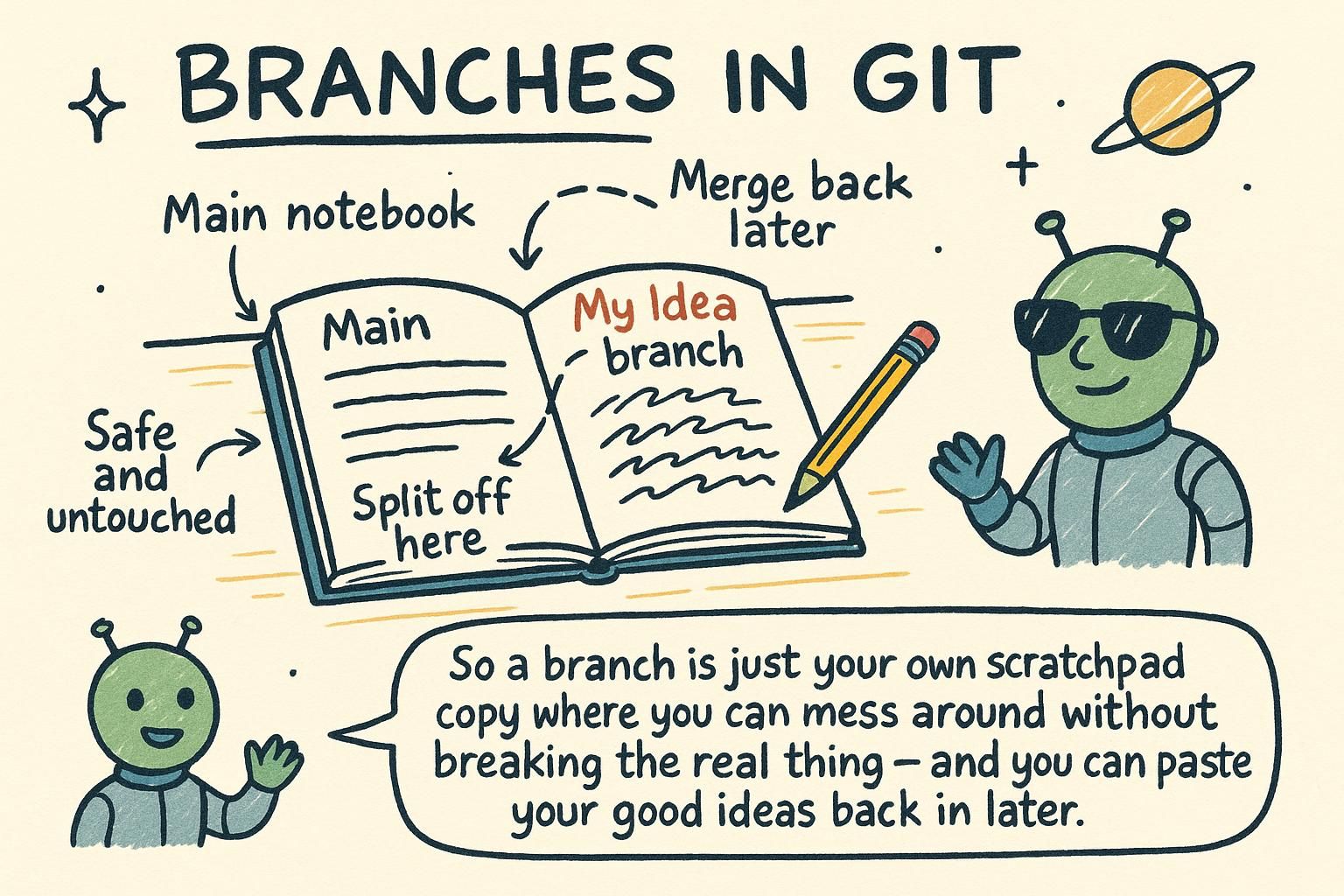
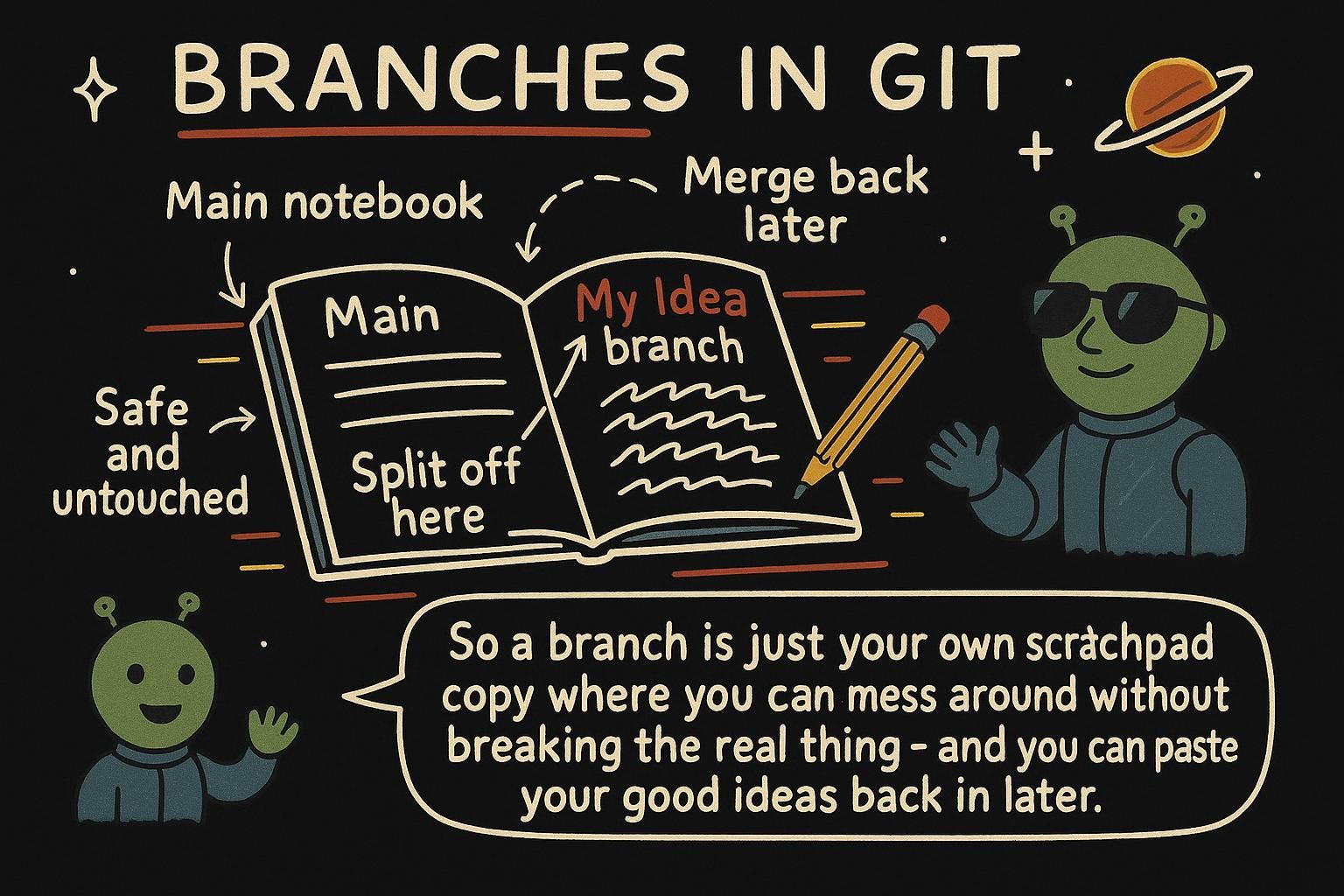
You are partway through building weather-app, and you want to try adding a five-day forecast feature. It might take a few commits to get it right, and until it does, you do not want half-finished code sitting next to the app that already works for everyone using it. A branch is how Git solves this: a separate line of work where the experiment lives, while main keeps working exactly as it did before you started.
What a branch actually is
Here it is in action:
$ git branch forecast
$ git switch forecast
Switched to branch 'forecast'
Two commands: the first creates a new branch called forecast, the second moves you onto it. From here, every commit you make lands on forecast while main stays exactly where it is.
A branch is a movable label that points at a commit. Right now, main and forecast both point at the same commit, the one you were standing on when you ran git branch forecast. The moment you commit again while on forecast, that label moves forward to the new commit. main stays exactly where it was until you switch onto it and commit there yourself.
You can see both labels with git branch:
$ git branch
  forecast
* main
The asterisk marks the branch you are currently on. A branch is only a name pointing at a commit. That is the whole mechanism. Everything else in this chapter is a variation on moving those labels around.

git branch forecast creates a new label pointing at your current commit, and git switch forecast moves you onto it. Nothing about your files changes until you actually commit there. I like to picture branches as sticky notes on a commit: cheap to add, cheap to move, cheap to peel off when you are done. Creating and switching branches
git branch forecast on its own creates the label without moving you there. Most of the time you want both at once, so git switch has a shortcut:
$ git switch -c forecast
Switched to a new branch 'forecast'
-c stands for "create". git switch -c both creates and moves you onto a branch. That single command is the one you will reach for almost every time you start new work.
Switching branches changes which snapshot your files show. Try it: the echo line below is a one-step way to create a new file, src/forecast.js, with a single line in it, and everything else is commands you already know:
$ git switch forecast
$ echo "// five-day forecast logic" > src/forecast.js
$ git add src/forecast.js
$ git commit -m "Start forecast module"
$ ls src
forecast.js  index.js
$ git switch main
Switched to branch 'main'
$ ls src
index.js
The file has not vanished. It lives on the forecast branch, and the main branch's snapshot never included it. Switch back to forecast and it reappears exactly as you left it.
git switch -c forecast creates a branch and moves you onto it in one step, which is what you will use almost every time. Switching branches swaps which version of your files you see, so a file added on one branch is absent on another until you switch back. Nothing is lost, it is parked on the other branch. HEAD and detached HEAD
Git keeps track of where you currently are with a marker called HEAD. Normally HEAD points at your current branch, and that branch points at a commit, so HEAD moves along automatically every time you switch or commit. If you check out a specific commit by its hash, or a tag (a fixed label pinned to one commit, often marking a release), instead of a branch name, HEAD attaches directly to that one commit rather than to a branch label. This state is called a detached HEAD.
You can look around freely there, and you can even commit, but nothing points at those new commits by name. If you switch to a branch without creating one first, they become hard to find again.
$ git switch a1b2c3d
HEAD is now at a1b2c3d Add password strength meter
That message, "HEAD is now at", is Git telling you that you have left branch territory and attached HEAD to a single commit.
Where this leads
You have now created branches, moved between them, and seen how main stays untouched while you experiment elsewhere. The next question is how work on a branch gets back into main, which is exactly what Merging and conflicts covers. If you want a refresher on reading commit history before moving on, History walks through git log, git show, and git diff.