

 Learn Git and GitHub
Undoing changes and commits in Git
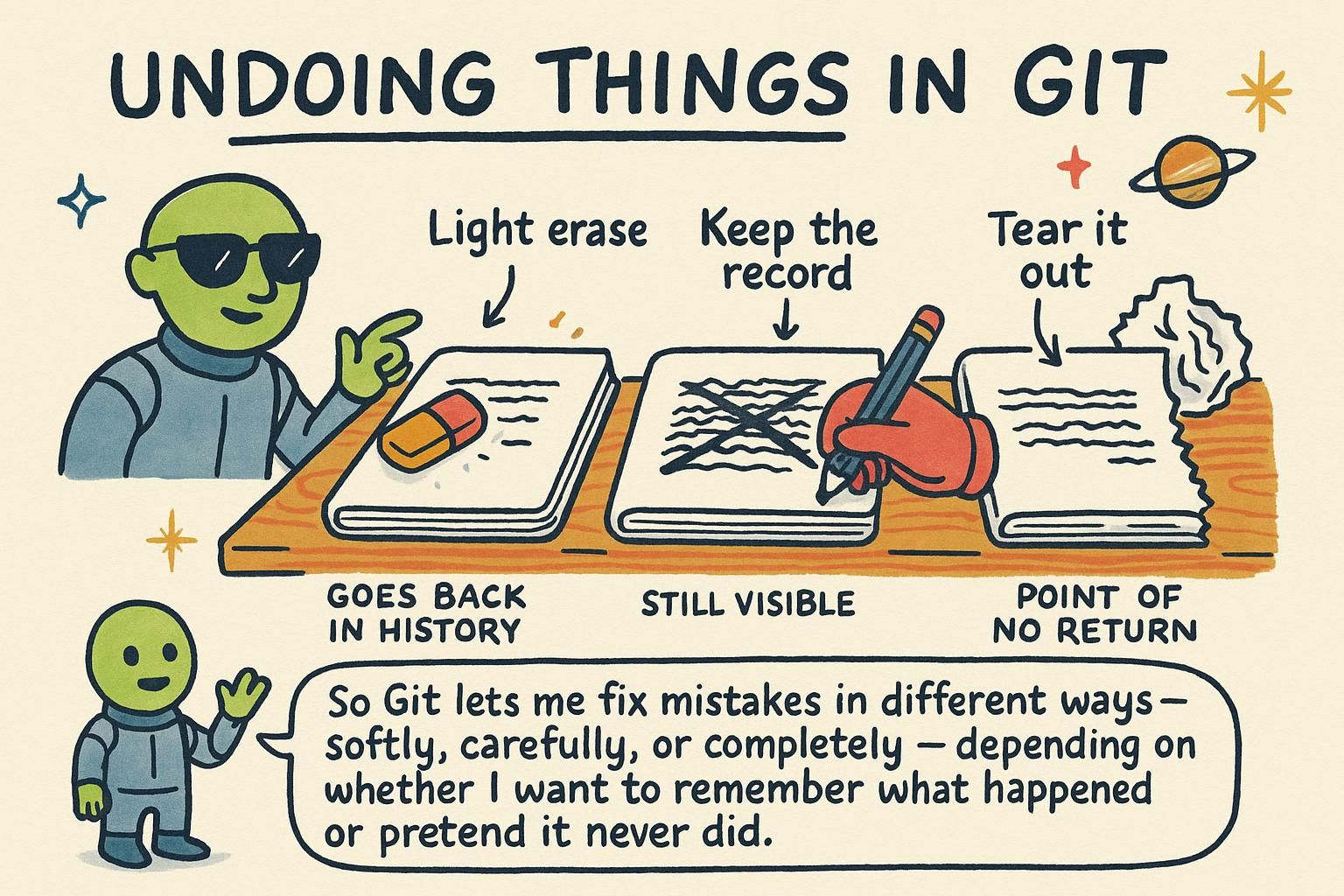
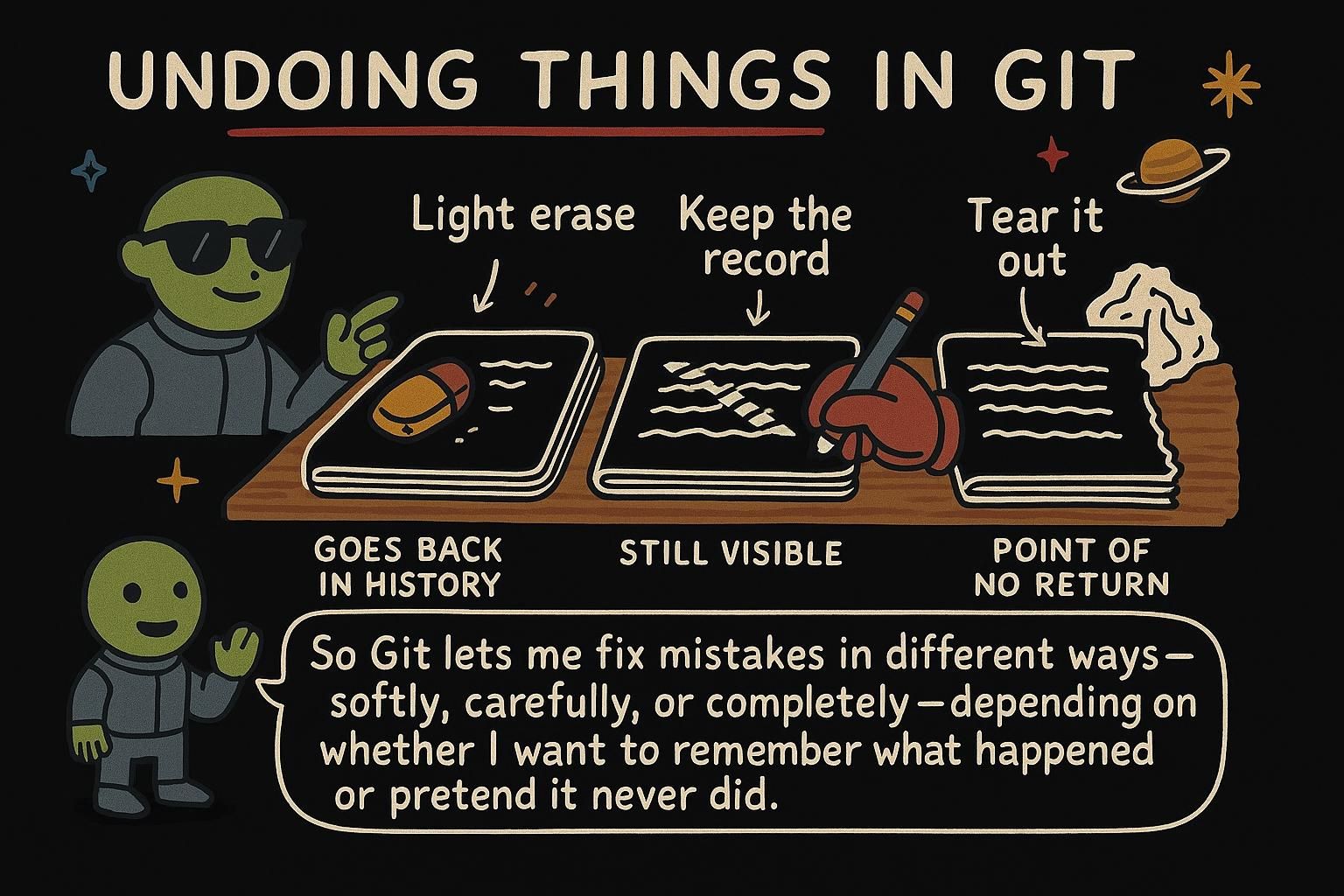
Something always needs undoing. You typed an edit you did not mean, tried a fix that made things worse, or committed something you would rather nobody see. Git keeps a record of nearly every version of your project it has ever seen, so most mistakes are more reversible than they feel in the moment. Which tool gets you back depends on how far the mistake has traveled: still sitting in your editor, already staged, already committed, or already pushed somewhere a teammate can see it. This chapter walks through each stage in that order.
What are push and pull?
Pushing sends your commits to a shared copy of the repository that teammates also work from, and pulling brings their commits down to you. Remotes and GitHub covers both in full; for this chapter, "pushed" means the commit has left your machine.
Discarding a change before you commit it
Say you are still restyling styles.css in weather-app from the commit loop, and the new layout turns out to be a bad idea. You have not staged it, you have not committed it. You want the file back the way it last looked, nothing more. The command for exactly that job is git restore:
$ git status
On branch main
Changes not staged for commit:
        modified:   styles.css

$ git restore styles.css

$ git status
On branch main
nothing to commit, working tree clean
git restore <file> throws away an uncommitted edit and puts the file back to its last saved state. If you had already staged the change with git add before changing your mind, plain git restore will not touch it, since the file is now sitting in the staging area rather than only in your working directory. Unstage it first, then restore it:
$ git add styles.css
$ git restore --staged styles.css
$ git restore styles.css
Two separate moves for two separate areas: git restore --staged moves a file back out of the staging area, and git restore on its own discards the edit in your working directory. git restore only reaches uncommitted work, once a change is committed, a different command takes over.

git restore <file> throws away an edit you have not committed and puts the file back the way it last was. If you already staged the change with git add, unstage it first with git restore --staged <file>, then restore the file if you want the edit gone too. This only works on changes you have not committed yet, so it cannot rescue a mistake you already saved. Setting work aside with git stash
Sometimes there is no mistake to fix, only bad timing. You are mid-edit on styles.css and a teammate needs you on a different branch right now, but you are not ready to commit half-finished styling. git stash shelves your changes and hands you a clean working directory so you can step away and come back later.
$ git status
On branch main
Changes not staged for commit:
        modified:   styles.css

$ git stash
Saved working directory and index state WIP on main: 8f3c7d1 Cache forecast responses in localStorage

$ git status
On branch main
nothing to commit, working tree clean
The edit to styles.css is not gone, it is parked. Bring it back with git stash pop once you are ready:
$ git stash pop
On branch main
Changes not staged for commit:
        modified:   styles.css
git stash is for changes you are not ready to commit yet, it never creates a commit on your branch.
git stash shelves changes you are not ready to commit, so your working directory goes clean, and git stash pop brings them back later. Nothing gets committed and nothing gets lost, the edit sits parked for a bit. I reach for this constantly whenever a teammate needs me on another branch right now. Undoing a commit with git revert
Say the commit 8f3c7d1, "Cache forecast responses in localStorage", turns out to be wrong, and it is already pushed, so a teammate has pulled it too. Rewriting that commit now would change something someone else already has, and their copy and yours would disagree the next time they pull. git revert solves this without changing anything that already exists: it creates a brand new commit that applies the opposite of the change.
$ git revert 8f3c7d1
[main 2b6f0d1] Revert "Cache forecast responses in localStorage"
History still shows both commits, the original and the one undoing it, in order. Nobody's copy needs reshaping, a teammate pulls the new revert commit like any other.
git revert is always safe on a commit others already have, because it adds a new commit instead of changing an old one.
git revert <commit> undoes a commit by adding a brand new commit that reverses it, instead of erasing the original. That makes it the safe pick once a commit is already shared with anyone else, since nothing already saved gets changed. History keeps a record of both the mistake and the fix, which I like more the longer I use Git. Rewinding with git reset: soft, mixed, and hard
There is a third way to undo a commit, git reset, and it works differently from revert: instead of adding a new commit that undoes the old one, reset moves your current branch to point at a different commit altogether. That makes it fast and clean for commits nobody else has seen yet, and risky for commits they have.
Reset is the broader, easier to misuse cousin of restore and revert above. You will not need it for most day-to-day fixes, restore, revert, and stash cover the vast majority of "help, undo this" moments. You will see it in other people's instructions though, so here is the headline: reset moves your branch backward in history, and one of its modes, --hard, throws away uncommitted work with no confirmation. If a command you are copying from somewhere includes git reset --hard, read what it does before you run it.
git reset in most day-to-day fixes, restore, revert, and stash already cover nearly everything. Still, know the shape of it: reset moves your branch back to an earlier commit, and its --hard mode wipes your working directory to match with no confirmation. Treat any command you copy that includes reset --hard with real caution. Choosing revert or reset
The rule that decides which tool to reach for: has anyone else already pulled this commit? If yes, revert. If the commit only exists on your machine, on a branch you have not pushed, reset is fine and often the tidier fix. When you are not sure, revert is always the safe choice, since it works in both cases.
Recovering a commit with git reflog
A reset --hard, a messy rebase, or deleting a branch by mistake can look like a commit vanished completely. It usually has not. Git keeps a local log of everywhere your HEAD and branches have pointed, called the reflog, and that log is almost always your way back to a commit that looks lost.
You are unlikely to need this often, but here is the headline: Git rarely throws anything away the moment it looks like it has. If you ever run reset --hard and realize afterward you needed that commit, there is very likely a way to get it back, covered here for whenever you are ready to go deeper.
reset --hard and realize too late you needed that commit, it is probably still recoverable. Git keeps a local record called the reflog of everywhere your work has pointed, and that is usually enough to get a commit back that looked gone. This is deep-dive territory, but it is reassuring to know it is there.