

Skip to content
This page has been auto-translated and may contain errors.View in English

git log, show, और diff के साथ Git history देखना
docs.scrimba.com

मान लीजिए आप सोमवार की सुबह weather-app खोलते हैं और बिल्कुल याद नहीं है कि आपने शुक्रवार को क्या भेजा था। या कोई सहकर्मी पूछता है कि पिछले हफ्ते temperature conversion क्यों बदला, और आप एक अनुमान की जगह असली जवाब चाहते हैं। The commit loop यह बताता है कि एक commit कैसे save होता है। यह chapter उस history को वापस पढ़ने के बारे में है: क्या हुआ, किसने किया, और कब। उसके लिए command है git log, और यहाँ एक छोटे project के लिए वह सब कुछ है जो यह print करता है:

bash
$ git log
commit 4f2a1c9d8e7b6a5c4d3e2f1a0b9c8d7e6f5a4b3c
Author: Priya Nair <[email protected]m>
Date:   Tue Jul 14 09:12:03 2026 +0100

    Fix temperature conversion in Celsius-to-Fahrenheit formula

commit 5f3d8b21a90e7c6d5b4a3f2e1d0c9b8a7f6e5d4c
Author: Kwame Boateng <[email protected]m>
Date:   Mon Jul 13 16:45:22 2026 +0100

    Add five-day forecast to the dashboard

commit 1a2b3c4d5e6f7a8b9c0d1e2f3a4b5c6d7e8f9a0b
Author: Kwame Boateng <[email protected]m>
Date:   Mon Jul 13 11:03:47 2026 +0100

    Set up project structure

एक command, और project की पूरी कहानी यहीं है: तीन commits, सबसे नए पहले, प्रत्येक के साथ कौन लिखा, कब, और क्यों।

git log के साथ log पढ़ना

git log हर commit को वापस चलता है जो आप जहाँ हैं वहाँ से पहुँचने योग्य है, सबसे हाल का पहले। प्रत्येक entry चार चीजें दिखाता है: एक hash (उस सटीक commit को identify करने वाले letters और numbers की लंबी string), author, date, और message जो इसके author ने लिखा था।

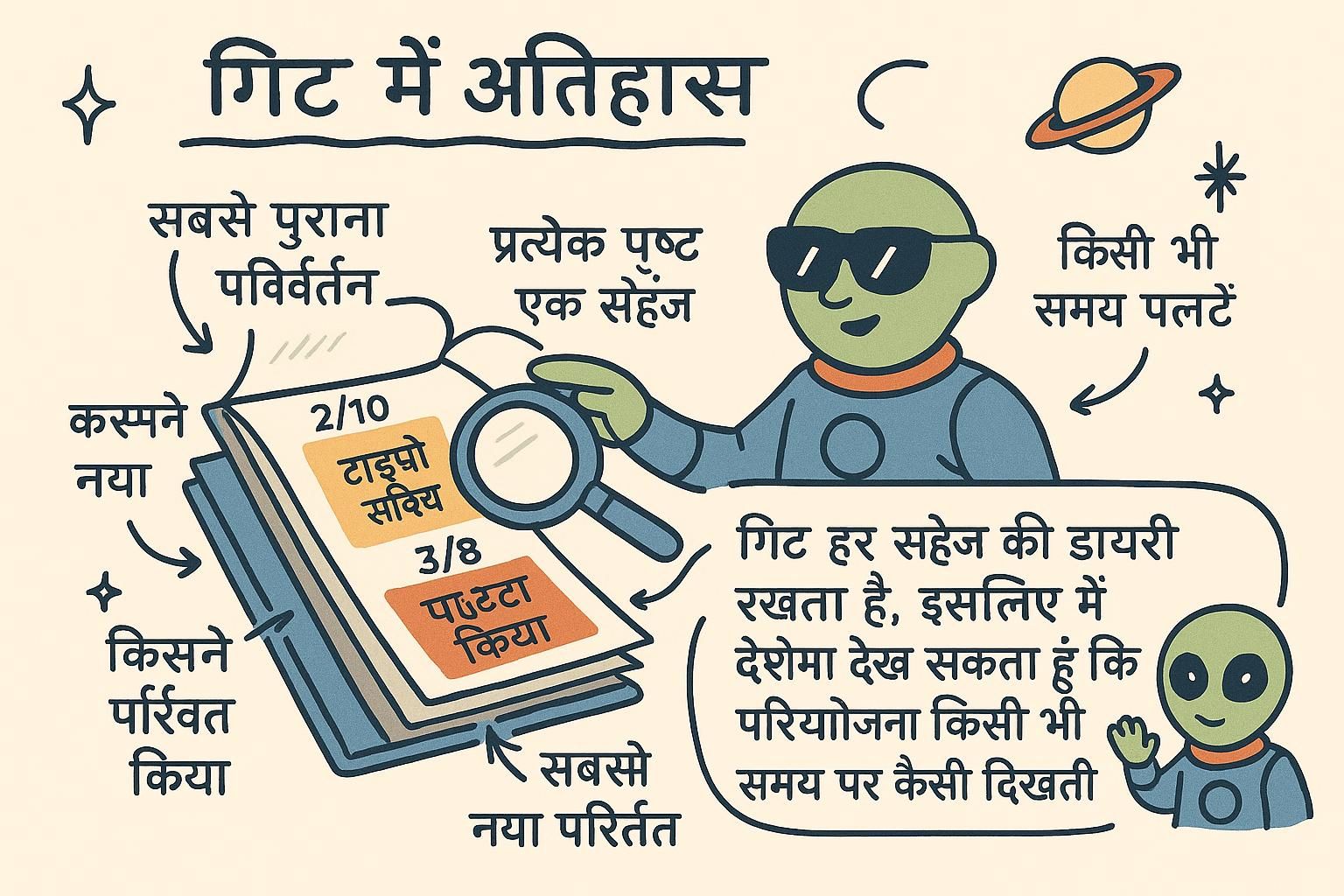
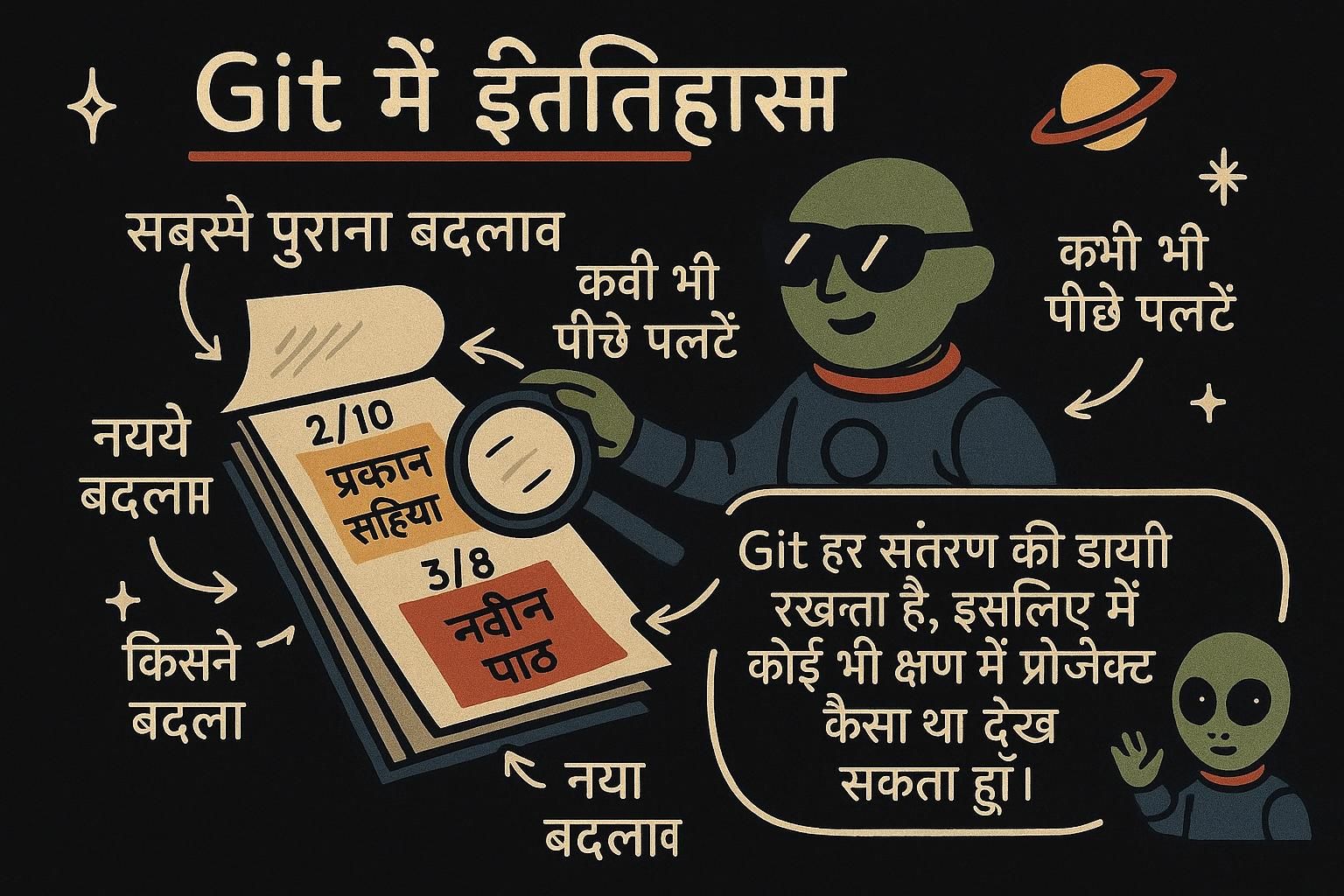
एक commit वह सभी चार चीजें एक साथ bundled हैं: उस समय के हर tracked file का एक snapshot, change को describe करने वाला message, जिसने इसे बनाया, और उस commit का link जो इससे ठीक पहले आया, इसका parent commit। यह parent link ही है जो अलग-अलग snapshots के pile को एक असली timeline में बदल देता है। git log को top से bottom तक पढ़ें और आप उस timeline को backward पढ़ रहे हैं, अब से शुरुआत तक।

Hash पहले में डराने वाला दिखता है, लेकिन आपको पूरी चीज की शायद ही कभी जरूरत होगी। 4f2a1c9d8e7b6a5c4d3e2f1a0b9c8d7e6f5a4b3c और 4f2a1c9 एक ही commit को point करते हैं। Git को यह बताने के लिए कि हर दूसरे commit से अलग है, केवल hash का काफी हिस्सा चाहिए, और पहले सात या इतने ही characters लगभग हमेशा काफी हैं। आप इस chapter के बाकी commands सहित हर जगह short form देखेंगे।

Default git log output thorough है लेकिन tall है: तीन commits भी आपके पूरे terminal को ले लेते हैं। कुछ shapes इसे day to day के लिए ज्यादा उपयोगी बनाते हैं।

bash
$ git log --oneline
4f2a1c9 Fix temperature conversion in Celsius-to-Fahrenheit formula
5f3d8b2 Add five-day forecast to the dashboard
1a2b3c4 Set up project structure

--oneline हर commit को इसके short hash और message को collapse करता है, एक line प्रति commit, जो आप सबसे ज्यादा reach करेंगे। --graph history के shape को log के साथ lines और dots के एक set के रूप में खींचता है। अभी तक branches न होने वाले project पर यह एक सादा सीधी line खींचता है, लेकिन इसे जल्दी अपनी fingers में रखें: जिस moment branches दिखाई दें (अगला chapter) वह ठीक तब है जब वह तस्वीर अपना काम earn करना शुरू करती है।

आप log को scroll करने की जगह filter भी कर सकते हैं। git log --author="Kwame" केवल Kwame द्वारा लिखे गए commits को दिखाता है, जब आप shared project पर एक person के काम को देखना चाहते हैं तो उपयोगी। git log -- src/index.js केवल उस specific file को touch करने वाले commits को दिखाता है, बाकी सब कुछ को ignore करता है:

bash
$ git log --oneline -- src/index.js
4f2a1c9 Fix temperature conversion in Celsius-to-Fahrenheit formula
1a2b3c4 Set up project structure

वह दूसरा commit, forecast वाला, कभी src/index.js को touch नहीं किया, इसलिए यह दिखाई नहीं देता। दोनों filters --oneline के साथ cleanly combine होते हैं।

ऊपर दिए गए filters "कौन से commits इस file को touch किए" का जवाब देते हैं। सवाल जो actually आपको history में एक बुरे दिन पर भेजता है वह तेज़ है: यह exact piece of code कब दिखाई दिया, या गायब हुआ? वह है जो git log -S, pickaxe के रूप में जाना जाता है। इसे एक string दें, और यह केवल वह commits रखता है जहाँ उस string के occurrences की संख्या बदली, मतलब वह commits जिन्होंने इसे add या remove किया:

bash
$ git log --oneline -S "showLoadingSpinner"
7d1e8c3 Add loading spinner while forecast data loads

एक commit, पूरी history में से: वह moment जब वह call codebase में आया। यह "यह bug line कब introduce हुई" का जवाब देने का fastest तरीका है बिना कुछ भी check किए। counting rule का एक consequence है जो जानने के लायक है: एक commit जो केवल line को एक file के अंदर move करता है, occurrence count को unchanged छोड़ता है, इसलिए -S इसे skip करता है। जब आप हर commit चाहते हैं जिसका diff text को touch करे, moves included, git log -G को एक regular expression के साथ use करें। पहले -S के लिए reach करें; यह उस सवाल पर sharper tool है जो आपके पास आमतौर पर होता है।

JunoLog को पढ़नाgit log हर commit को list करता है, सबसे नया पहले, इसके hash, author, date, और message के साथ। एक commit वह snapshot है plus इसका message plus पहले वाले commit का link। आपको लगभग कभी पूरे hash की जरूरत नहीं है, पहले कई characters Git के लिए काफी हैं कि वह exactly जानें कि आप किस commit का मतलब है।
JunoLog को पढ़नाgit log --oneline वह shape है जिसे आप daily use करेंगे, एक line प्रति commit। --author या एक trailing -- path add करें एक person के काम या एक file की history तक filter करने के लिए, और एक बार branches enter करें तो --graph के लिए reach करें।
JunoLog को पढ़ना हर commit की hash इसके अपने content का fingerprint है plus इसके parent की hash, इसलिए दो commits कभी accidentally collide नहीं करते और एक short prefix type करना safe है। और जब सवाल है "यह line कब appear या vanish हुई", git log -S "text" आपके लिए पूरी history walk करता है और केवल वह commits रखता है जिन्होंने इसे added या removed किया। उस और parent link के बीच, यह chapter मेरे debugging toolkit का अधिकांश है।

git show के साथ एक commit inspect करना

git log बताता है कि एक commit हुआ। git show <hash> बताता है कि यह exactly क्या किया:

bash
$ git show 4f2a1c9
commit 4f2a1c9d8e7b6a5c4d3e2f1a0b9c8d7e6f5a4b3c
Author: Priya Nair <[email protected]m>
Date:   Tue Jul 14 09:12:03 2026 +0100

    Fix temperature conversion in Celsius-to-Fahrenheit formula

diff --git a/src/index.js b/src/index.js
index 3f2c1a9..7b8e2d4 100644
--- a/src/index.js
+++ b/src/index.js
@@ -12,7 +12,7 @@ function celsiusToFahrenheit(celsius) {
-  return celsius * (9 / 5 + 32)
+  return (celsius * 9) / 5 + 32

Top half वही metadata है जो git log दिखाता है। इसके नीचे actual change है: एक line जो - से शुरू होती है वह एक line है जिसे commit ने remove किया, एक line जो + से शुरू होती है वह एक line है जिसे यह add किया, और unmarked lines वह context हैं जो same रहीं। यहाँ यह clearly पढ़ता है: old line ने 32 को parentheses के अंदर group किया, इसलिए यह multiplication के पहले add हुआ। fix parentheses को celsius * 9 के चारों ओर regroup करता है इसलिए 32 आखिर में add होता है, वह operator-precedence bug जिसे Priya का message describe करता है।

केवल एक बड़े commit के हिस्से को देखने के लिए एक path add करें: git show 4f2a1c9 -- src/index.js केवल उस file के slice को दिखाता है, जो matter करता है जब एक single commit कई files को touch करता है और आप केवल एक की परवाह करते हैं।

Junoएक commit को inspect करनाgit show <hash> एक commit को full में दिखाता है: किसने बनाया, कब, और actual lines जिन्हें यह change किया। Removed lines एक minus sign से शुरू होती हैं, added lines एक plus sign से शुरू होती हैं। यह "यह commit actually क्या किया" का जवाब देने का fastest तरीका है।
Junoएक commit को inspect करनाgit show <hash> एक commit के लिए metadata और full diff देता है। एक specific path को भी point करें, git show <hash> -- path/to/file, जब एक commit कई files को touch करता है और आपको केवल एक file का slice चाहिए।
Junoएक commit को inspect करनाgit show एक commit के saved snapshot को इसके parent के साथ compare कर रहा है, और केवल उन lines को print कर रहा है जो differ करती हैं। एक बार जब आप इस तरह diffs को पढ़ना शुरू करते हैं, एक commit mystery box होना बंद कर देता है और दो snapshots with a difference के बीच बनना शुरू करता है।

git diff क्या दिखाता है, और वह trip-up जिसे लगभग सभी hit करते हैं

git log और git show committed history को पढ़ते हैं। git diff उस चीज़ को पढ़ता है जो commit नहीं हुई है: अभी आपकी working directory में बैठे हुए changes, आपके last commit के against compare किए।

bash
$ git diff
diff --git a/README.md b/README.md
index 1c2d3e4..9f8a7b6 100644
--- a/README.md
+++ b/README.md
@@ -1,3 +1,4 @@
 # weather-app
+A five-day weather dashboard built with vanilla JavaScript.

यह वह edit है जिसे आपने README.md में किया, कुछ भी stage या commit करने से पहले दिखाया गया। यह वह part है जो लगभग सभी को उनके first week में catch करता है: git add . run करें उसी change को stage करने के लिए, फिर git diff को फिर से run करें, और यह कुछ नहीं दिखाता।

bash
$ git add .
$ git diff

कुछ नहीं printed। edit disappear नहीं हुई, और कुछ गलत नहीं हुआ। Plain git diff आपकी working directory को staging area के against compare करता है, और एक बार जब आपने सब कुछ stage कर दिया, तो वे दोनों अब match करते हैं, इसलिए कोई difference नहीं बचता है दिखाने के लिए। Staging area में waiting changes को देखने के लिए, इसकी जगह git diff --staged use करें।

bash
$ git diff --staged
diff --git a/README.md b/README.md
index 1c2d3e4..9f8a7b6 100644
--- a/README.md
+++ b/README.md
@@ -1,3 +1,4 @@
 # weather-app
+A five-day weather dashboard built with vanilla JavaScript.

Same change, अब visible, क्योंकि --staged staging area को आपके last commit के against compare करता है।

Plain git diff और git diff --staged दो different सवालों का जवाब दे रहे हैं, और इन्हें precisely name करना मदद करता है। Plain git diff आपकी working directory को staging area से compare करता है: यह edits दिखाता है जिन्हें आपने किया है लेकिन अभी stage नहीं किया। git diff --staged staging area को आपके last commit से compare करता है: यह exactly दिखाता है कि अगले commit में क्या जाएगा अगर आप अभी git commit run करें। न ही एक ही बार दोनों को दिखाता है, जो ठीक है क्यों एक fully staged change plain git diff को quiet बना देता है। आप कभी-कभी पुराने tutorials और docs में --cached देखेंगे; इसका मतलब --staged जैसा ही है।

Commit करने से पहले दोनों को run करना एक अच्छी habit है: plain git diff confirm करता है कि कुछ important unstaged नहीं बचा, और git diff --staged confirm करता है कि exactly क्या save होने वाला है।

Junoदेखना कि क्या बदलाgit diff आपकी working directory में edits दिखाता है जो अभी staged नहीं हैं। एक बार जब आप git add से सब कुछ stage कर दें, plain git diff quiet हो जाता है। यह expected है, आपके changes अभी भी वहाँ हैं। git diff --staged use करें commit करने के लिए waiting को देखने के लिए।
Junoदेखना कि क्या बदला Plain git diff working directory के against staging area है, git diff --staged staging area के against आपके last commit है, दो different comparisons। Commit करने से पहले दोनों को run करना बताता है कि क्या unstaged है और क्या save होने वाला है। पुरानी material कभी-कभी --cached कहती है, same flag, different name।
Junoदेखना कि क्या बदला दोनों diffs वही operation हैं different pairs of snapshots पर applied: working tree against staging area, या staging area against last commit। जो two चीजें आप compare कर रहे हैं उन्हें name करना पूरी trick है एक empty git diff से कभी confused न होने के लिए।

Git history एक graph क्यों बनाता है

हर commit जिसे आपने अभी तक देखा है exactly एक parent को point करता है, और git log को top से bottom तक पढ़ना एक सीधी line पढ़ने जैसा लगता है। यह एक solo project के लिए hold करता है एक काम की line पर। यह hold करना बंद कर देता है moment branches और merges enter करते हैं, जो अगले Branches में covered है, क्योंकि एक project की real history अलग-अलग lines में split हो सकती है और वापस एक साथ आ सकती है।

यह है जो earlier से --graph flag actually के लिए है। weather-app पर अभी यह एक single column खींचता है, क्योंकि केवल एक line है commits की खींचने के लिए। एक बार जब एक branch fork होता है और बाद में merge होता है, --graph fork और rejoin को separate columns के रूप में खींचना शुरू करता है जो meet करते हैं, जो एक flat list of hashes से picture बनाने की कोशिश करने से far easier है।

एक merge commit पर git show run करें और, by default, यह केवल metadata print करता है: कोई diff बिल्कुल नहीं। -m add करें और यह एक separate diff print करता है हर parent के लिए turn में। दोनों behaviors वही shape में trace back करती हैं: Git की history एक DAG है, एक directed acyclic graph। "Directed" मतलब हर link एक तरफ point करता है, एक commit अपने parent को, कभी forward नहीं। "Acyclic" मतलब वह links कभी loop नहीं करते, इसलिए उन्हें walk करना हमेशा project की शुरुआत की ओर move करता है, कभी एक commit को नहीं जो आप पहले से ही pass कर चुके हों। एक normal commit के पास exactly एक parent है, जो है कि एक solo project की log सीधी line के रूप में क्यों पढ़ता है। एक merge commit exception है: यह दो parent hashes carry करता है एक की जगह, और दो parents के साथ, plain git show के पास कोई single "the diff" नहीं है print करने के लिए जब तक -m यह नहीं बताता कि प्रत्येक parent के against separately compare करो। Branches और merging, अगले दो chapters, directly इसी graph पर build करते हैं।

JunoHistory एक graph के रूप में अभी हर commit जिसे आपने देखा वह एक parent को point करता है, इसलिए log एक सीधी line की तरह पढ़ता है। यह change होता है एक बार branches split होते हैं और वापस merge होते हैं, जो आप अगला meet करेंगे। यह shape जो underneath है, commits जो commit से पहले उन्हें link किए हुए हैं, वह है जो किसी भी इसे possible बनाता है।
JunoHistory एक graph के रूप में एक solo line of commits सीधा दिखता है क्योंकि हर एक के पास एक single parent है। --graph flag वह है जो shape को visible बनाता है एक बार branching शुरू होता है, एक flat list की जगह forks और merges खींचता है। इसे अपने toolkit में रखें भले ही आपको इसकी ज़रूरत से पहले।
JunoHistory एक graph के रूप में Git की history एक directed acyclic graph है: parent pointers केवल ever backward point करते हैं, और वे कभी loop नहीं करते। एक merge commit वह एक जगह है एक commit जो दो parents पाता है एक की जगह, जो है कि plain git show वहाँ कोई diff नहीं print करता है जब तक आप एक parent pick करने के लिए -m add न करें। Branches और Merging इसी graph की बाकी चीज़ को, different angles से teach करते हैं।